
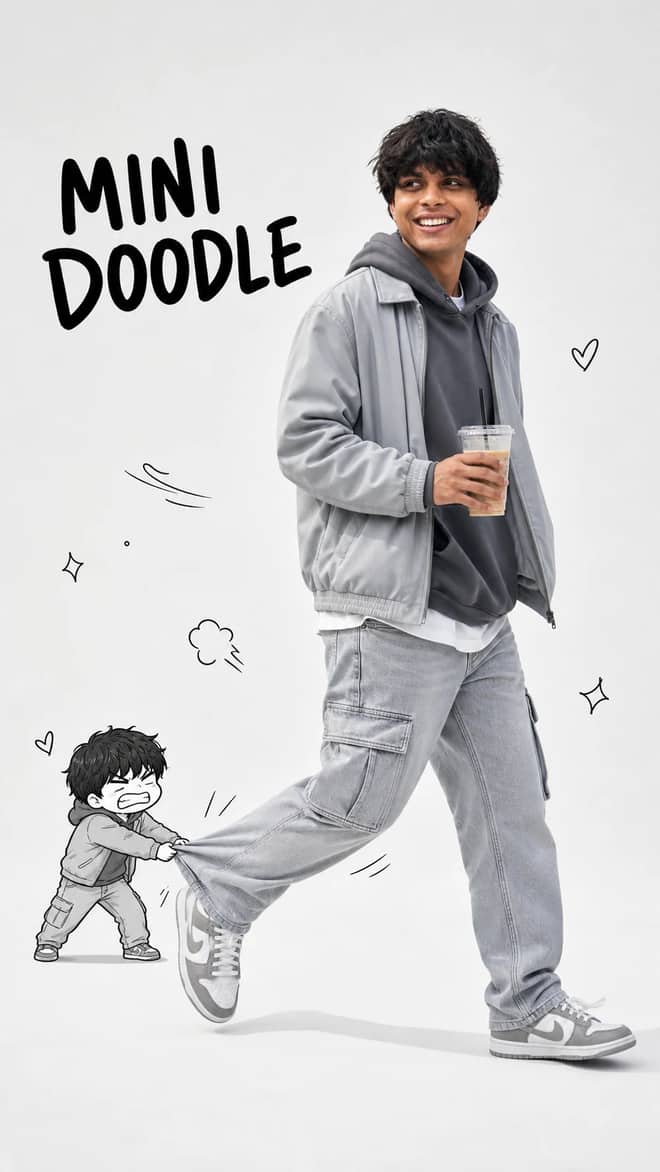
Walking with Mini Doodle Character Photo Prompt
Create a playful 9:16 editorial photo where a realistic walking man meets his tiny angry doodle double in a clean studio fashion scene.
9
Open Walking with Mini Doodle Character Photo Prompt AI prompt library
Free gemini ai photo editor prompts ready to paste. Drop one into Gemini or ChatGPT, add your photo, and see what comes back.
60 prompts here. Free, no signup.
The gemini ai photo editor is not a panel of sliders and brushes. It is a chat box. You upload a picture, type the change you want in plain words, and Google's image model does the edit for you. The grid of prompts above is written for exactly this, so you can grab one, drop in your own photo, and get going. The rest of this page is about how the editor thinks, where it is genuinely good, and where it gets stubborn, so your…
Create a playful 9:16 editorial photo where a realistic walking man meets his tiny angry doodle double in a clean studio fashion scene.
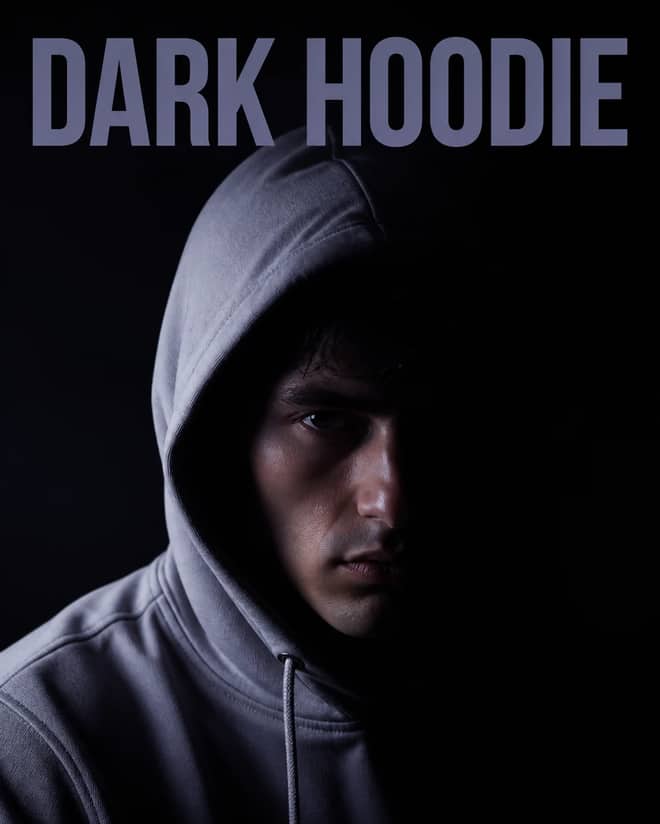
Create a dark cinematic gray-hoodie portrait with this copy-paste prompt for realistic detail, cinematic lighting, and polished editorial results.
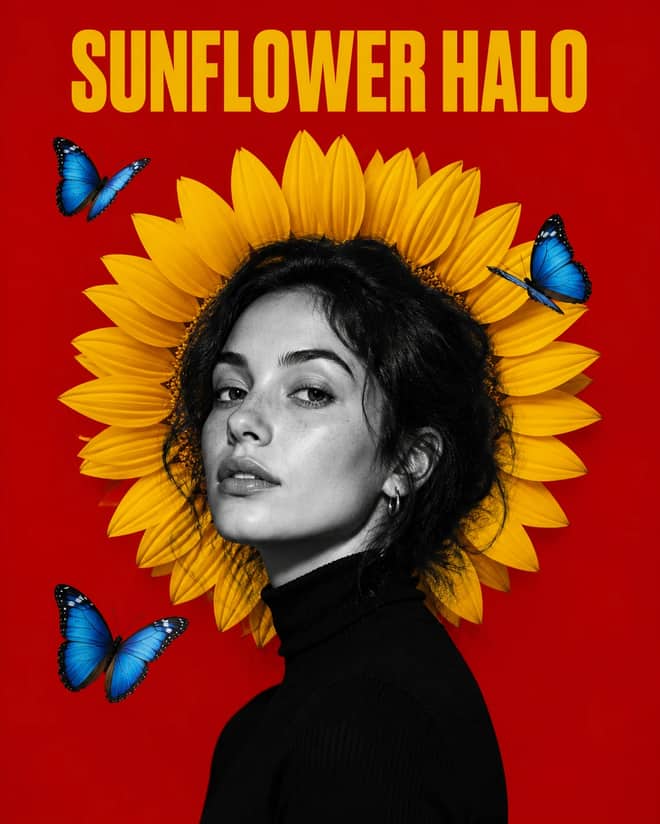
Create a colorful sunflower-halo poster with this copy-paste prompt for realistic detail, cinematic lighting, and polished editorial results.
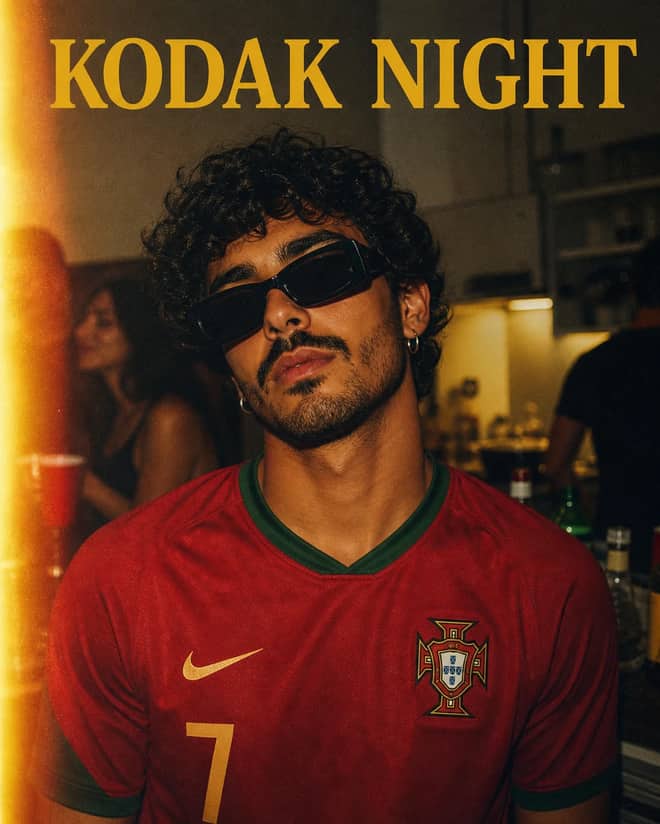
Create a kodak gold house-party portrait with this copy-paste prompt for realistic detail, cinematic lighting, and polished editorial results.
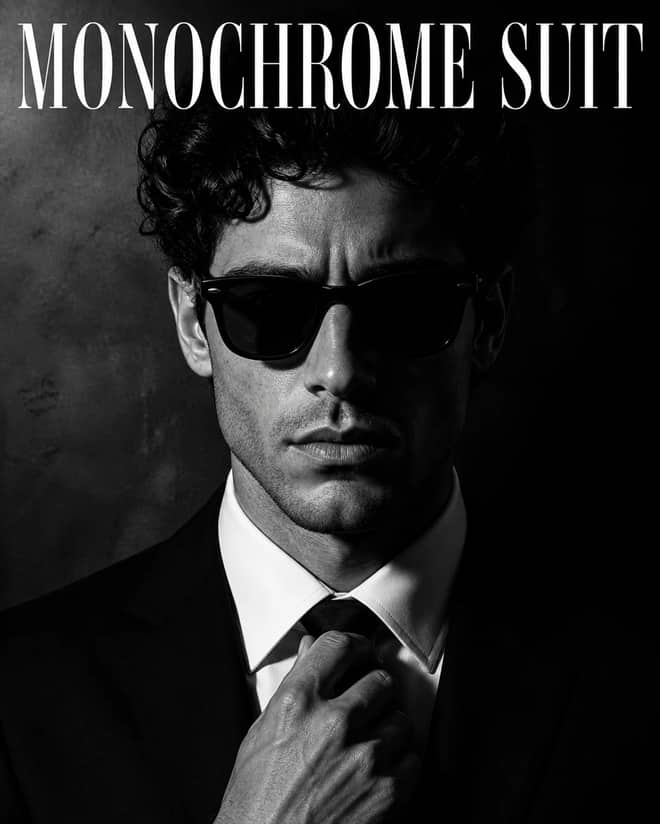
Create a monochrome black-suit portrait with this copy-paste prompt for realistic detail, cinematic lighting, and polished editorial results.
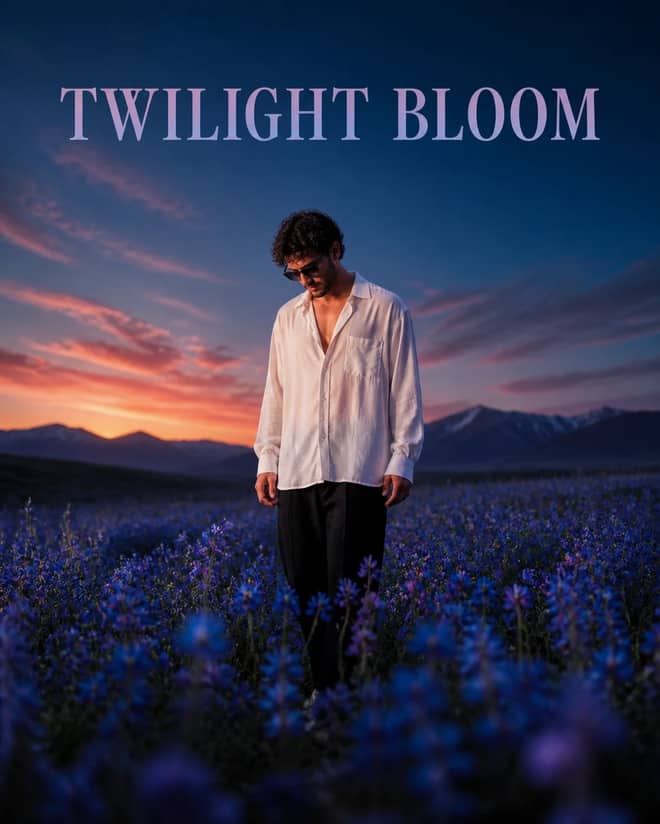
Create a twilight wildflower-field portrait with this copy-paste prompt for realistic detail, cinematic lighting, and polished editorial results.
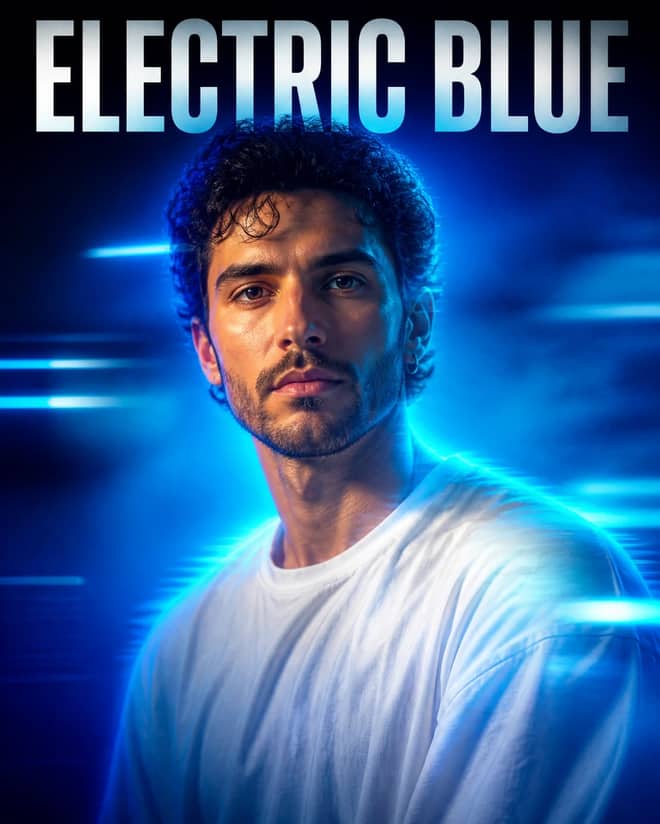
Create a electric blue futuristic portrait with this copy-paste prompt for realistic detail, cinematic lighting, and polished editorial results.
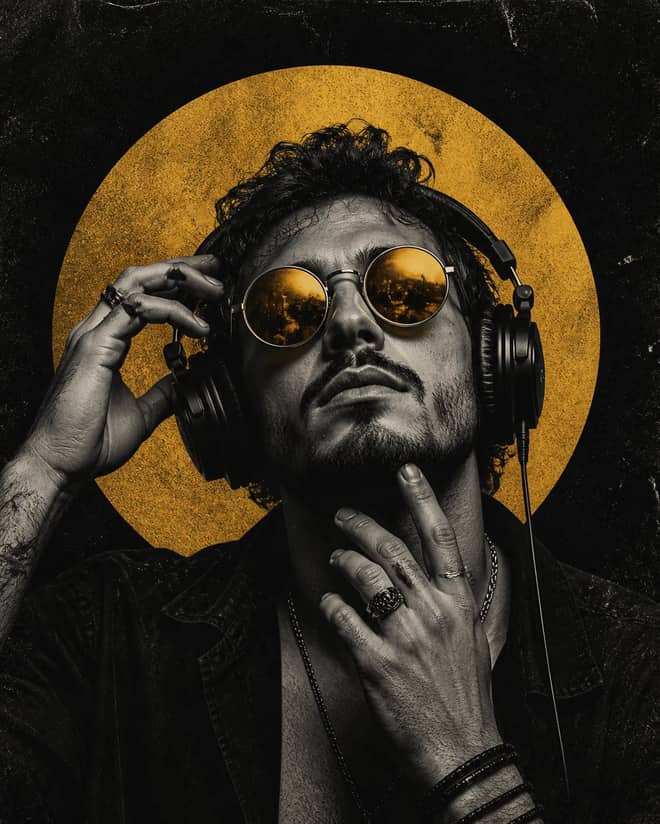
Create a underground club poster with this copy-paste prompt for realistic detail, cinematic lighting, and polished editorial results.
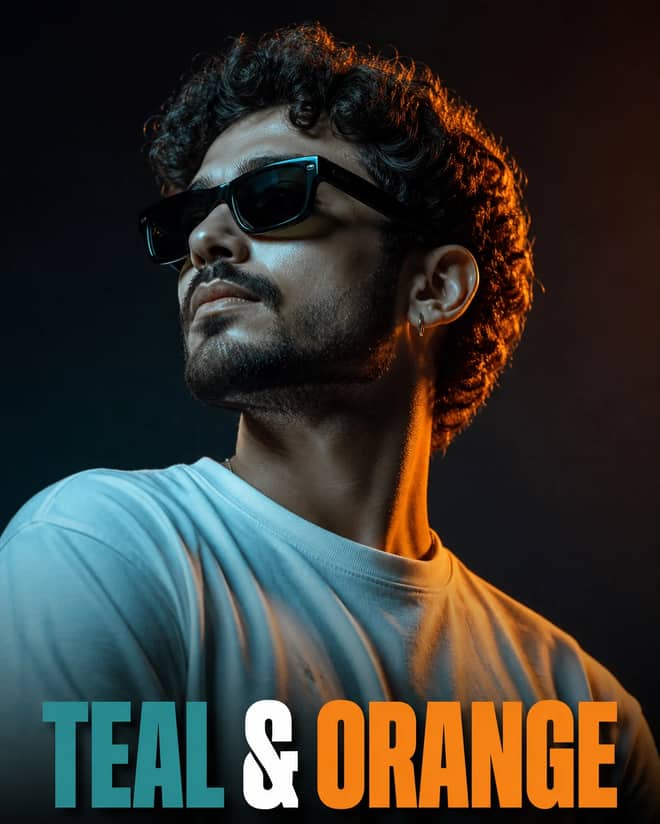
Create a teal-and-orange studio portrait with this copy-paste prompt for realistic detail, cinematic lighting, and polished editorial results.
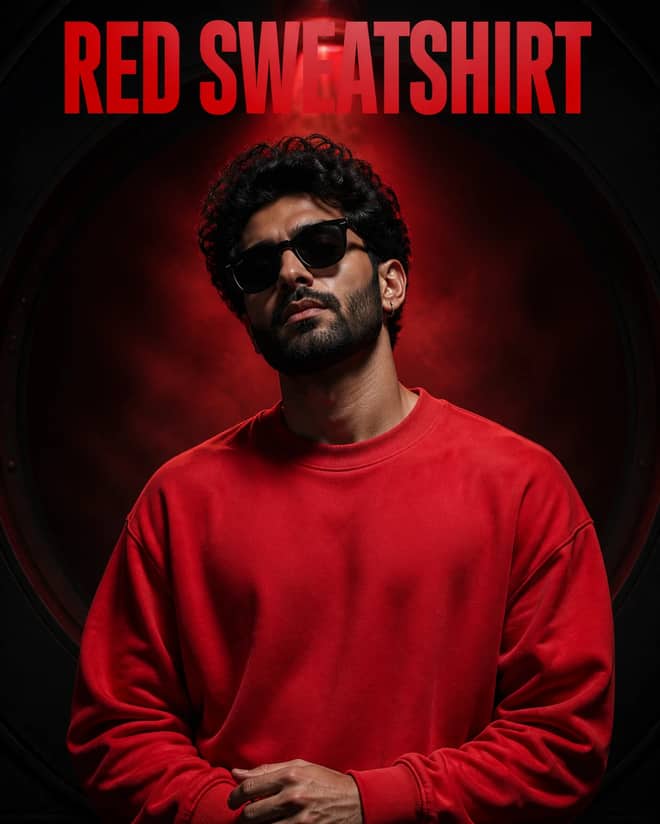
Create a red sweatshirt studio portrait with this copy-paste prompt for realistic detail, cinematic lighting, and polished editorial results.
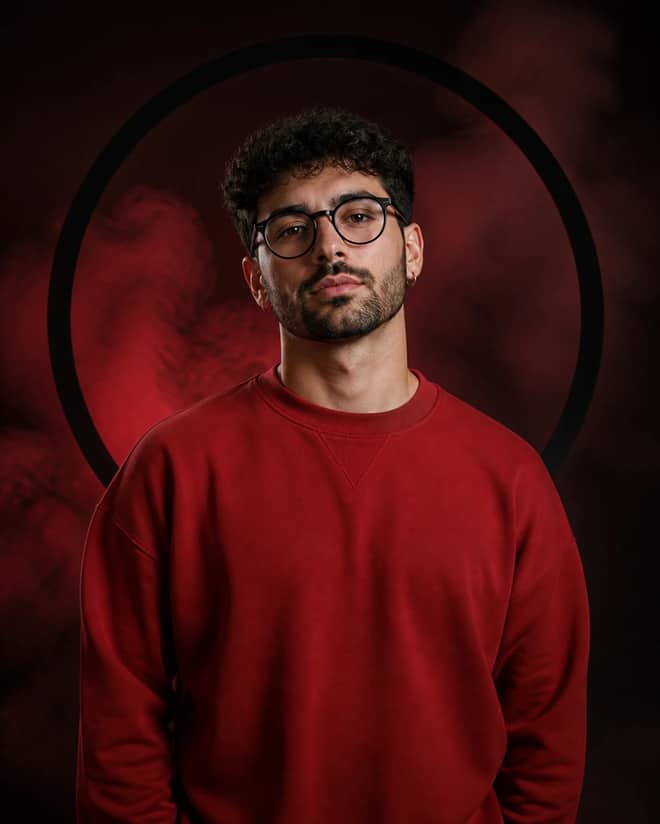
Create a red rim-light black-suit portrait with this copy-paste prompt for realistic detail, cinematic lighting, and polished editorial results.
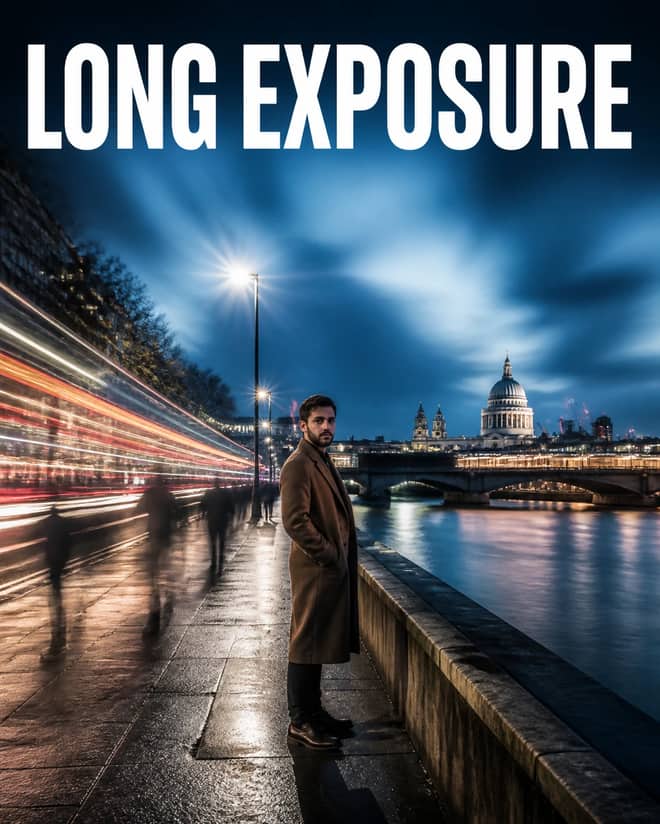
Create a long-exposure cinematic photograph with this copy-paste prompt for realistic detail, cinematic lighting, and polished editorial results.
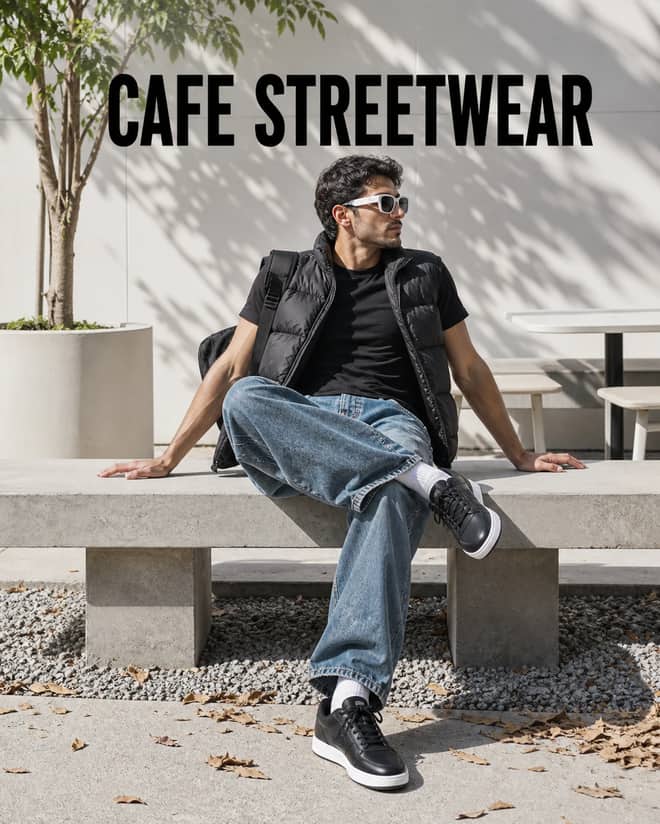
Create a outdoor cafe streetwear portrait with this copy-paste prompt for realistic detail, cinematic lighting, and polished editorial results.
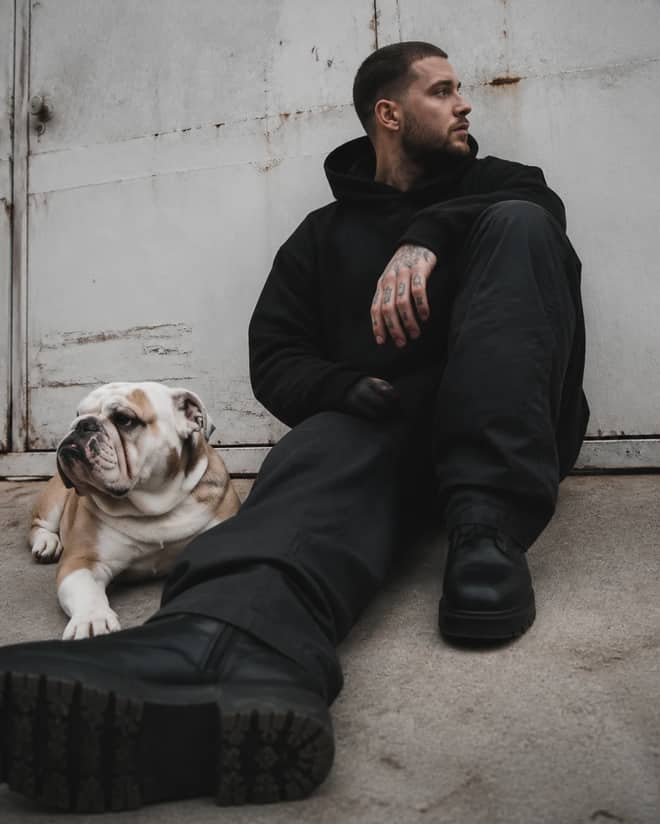
Create a industrial streetwear portrait with a bulldog with this copy-paste prompt for realistic detail, cinematic lighting, and polished editorial results.
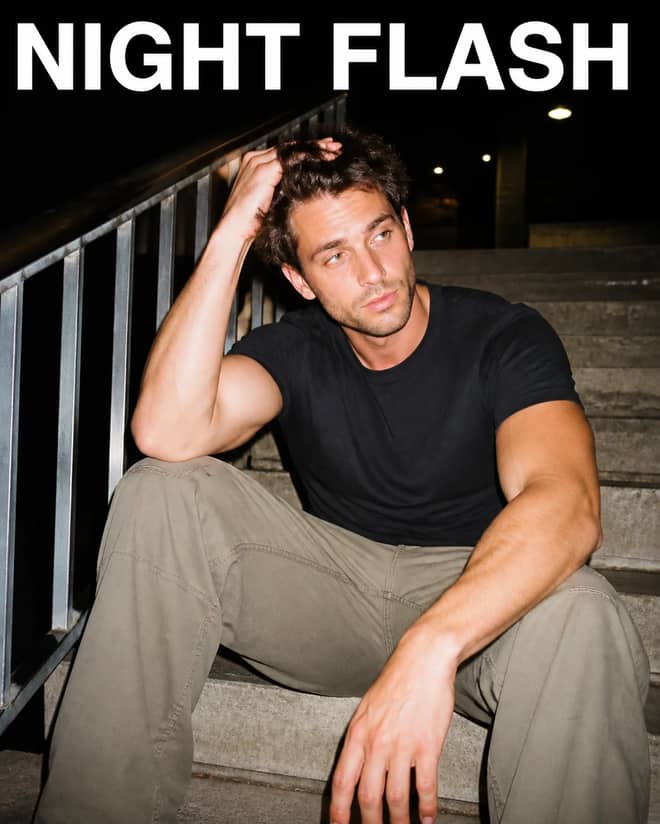
Create a direct-flash night-stairs portrait with this copy-paste prompt for realistic detail, cinematic lighting, and polished editorial results.
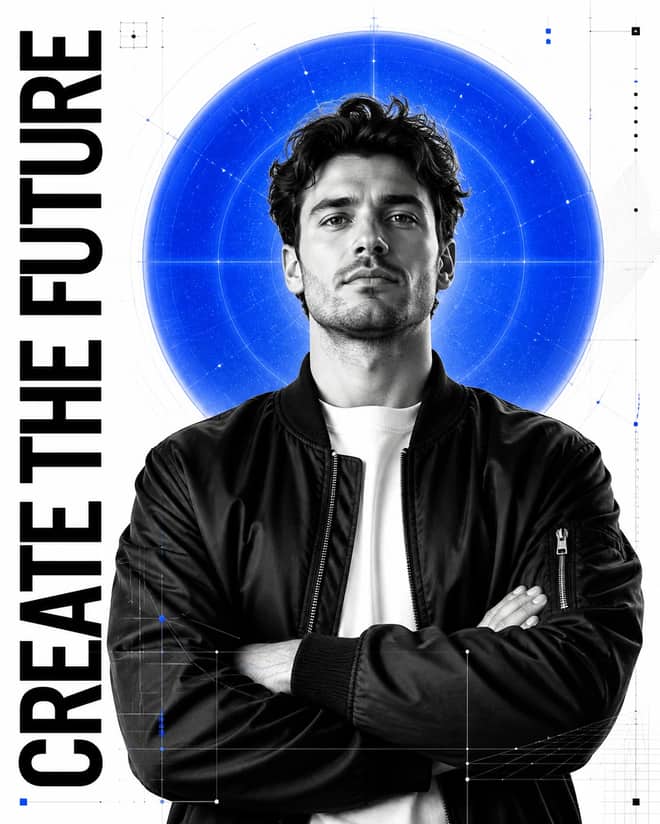
Create a electric blue innovator poster with this copy-paste prompt for realistic detail, cinematic lighting, and polished editorial results.
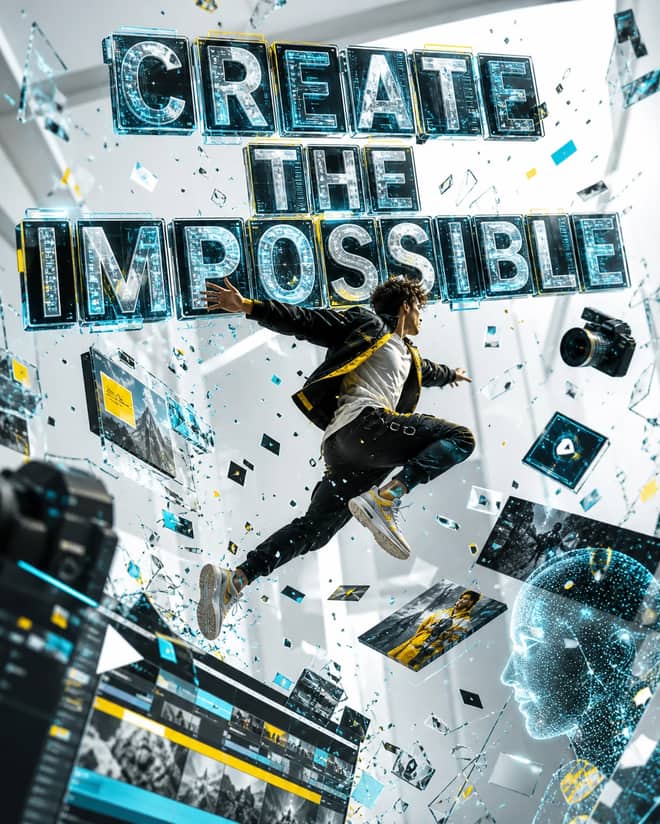
Create a creative-tech advertising poster with this copy-paste prompt for realistic detail, cinematic lighting, and polished editorial results.
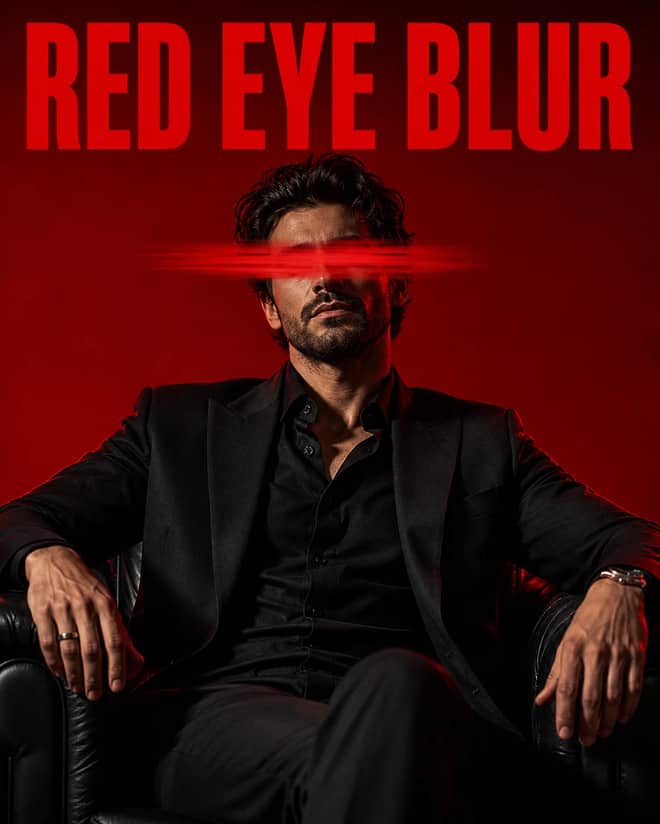
Create a red-eye motion-blur suit portrait with this copy-paste prompt for realistic detail, cinematic lighting, and polished editorial results.
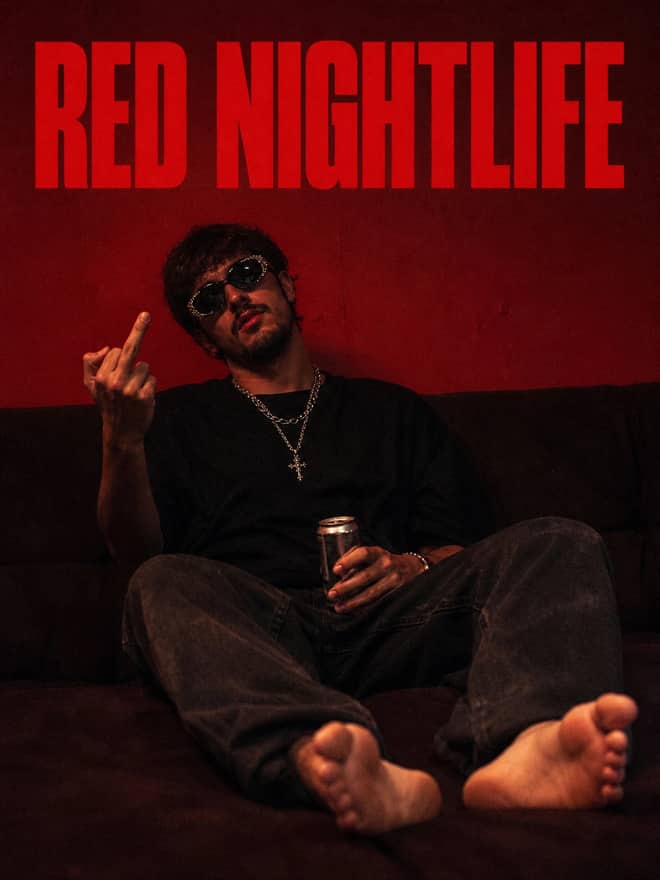
Create a red house-party editorial portrait with this copy-paste prompt for realistic detail, cinematic lighting, and polished editorial results.
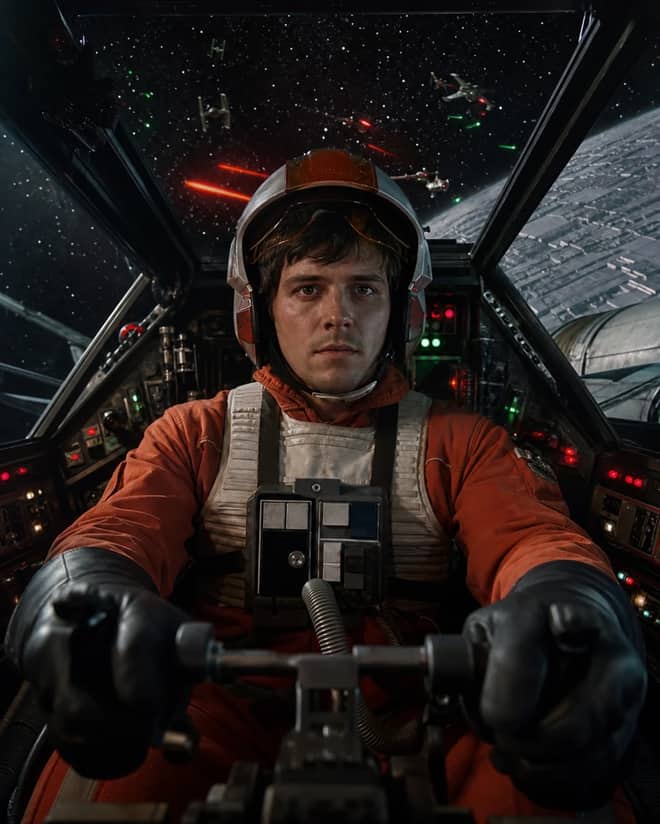
Create a x-wing rebel pilot space photo with this copy-paste prompt for realistic detail, cinematic lighting, and polished editorial results.
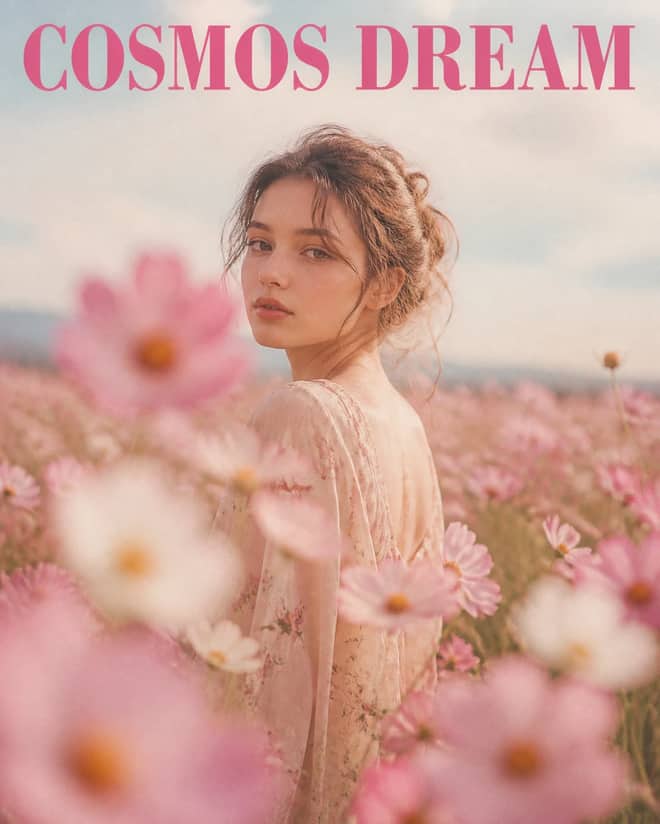
Create a dreamy cosmos flower-field portrait with this copy-paste prompt for realistic detail, cinematic lighting, and polished editorial results.
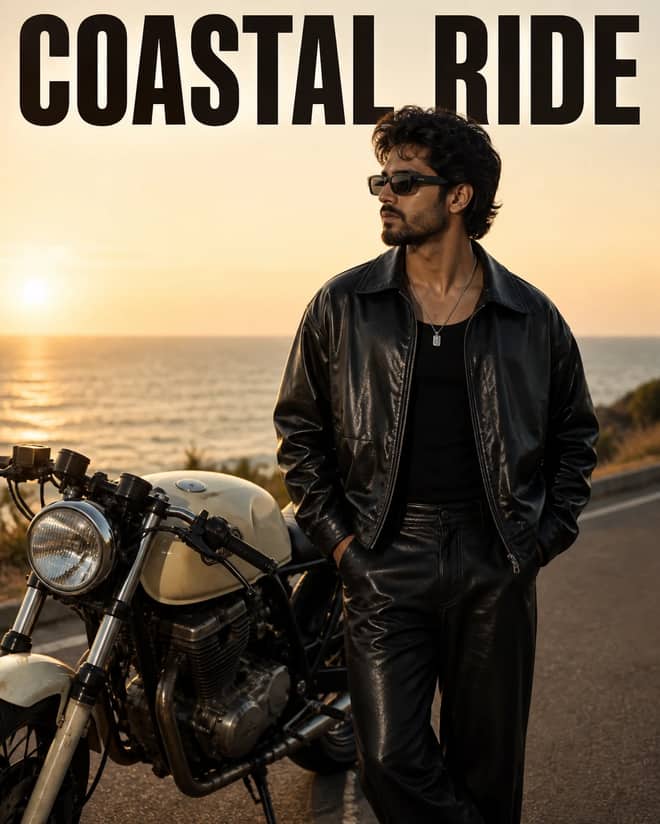
Create a coastal motorcycle fashion portrait with this copy-paste prompt for realistic detail, cinematic lighting, and polished editorial results.
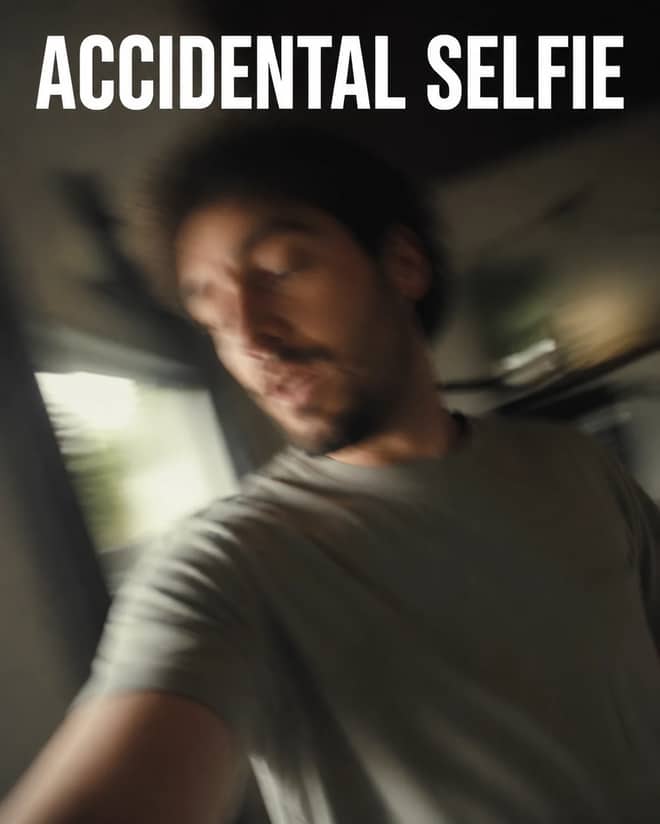
Create a candid accidental smartphone selfie with this copy-paste prompt for realistic detail, cinematic lighting, and polished editorial results.
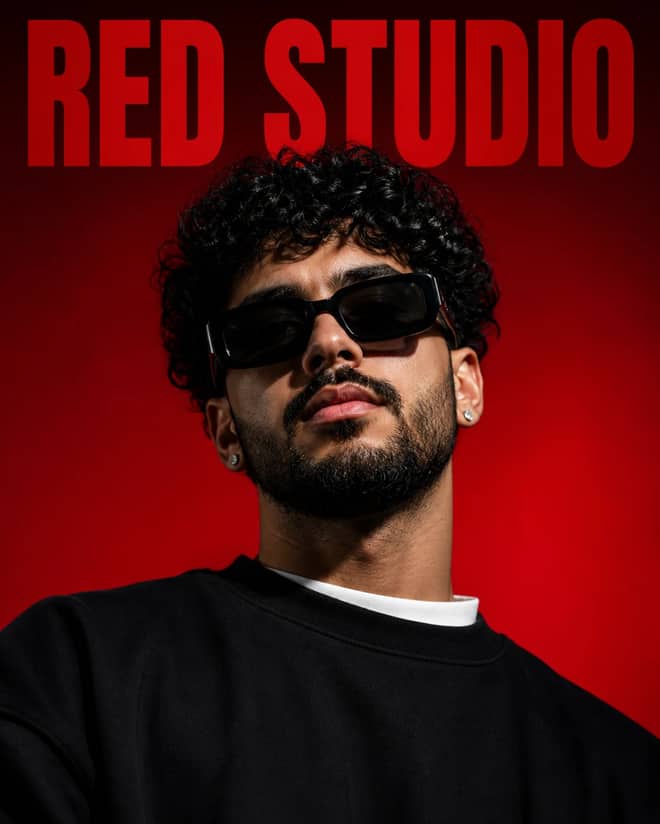
Create a red studio fashion portrait with this copy-paste prompt for realistic detail, cinematic lighting, and polished editorial results.
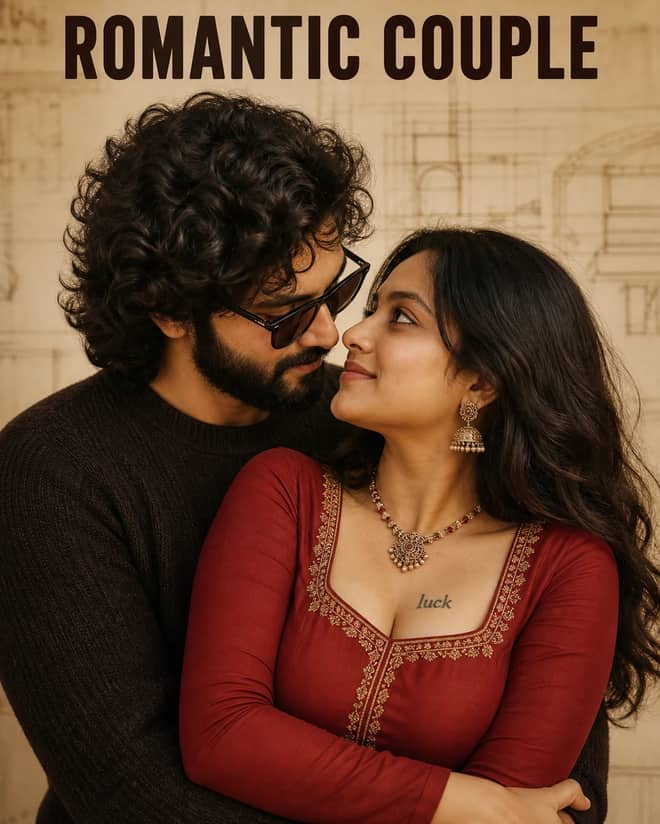
Create a romantic couple editorial portrait with this copy-paste prompt for realistic detail, cinematic lighting, and polished editorial results.
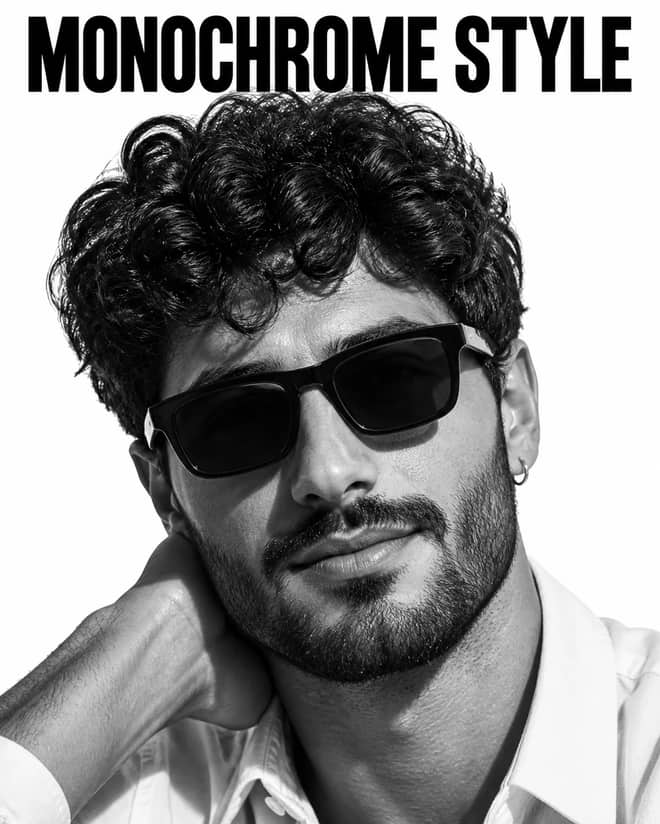
Create a black and white close-up portrait with this copy-paste prompt for realistic detail, cinematic lighting, and polished editorial results.
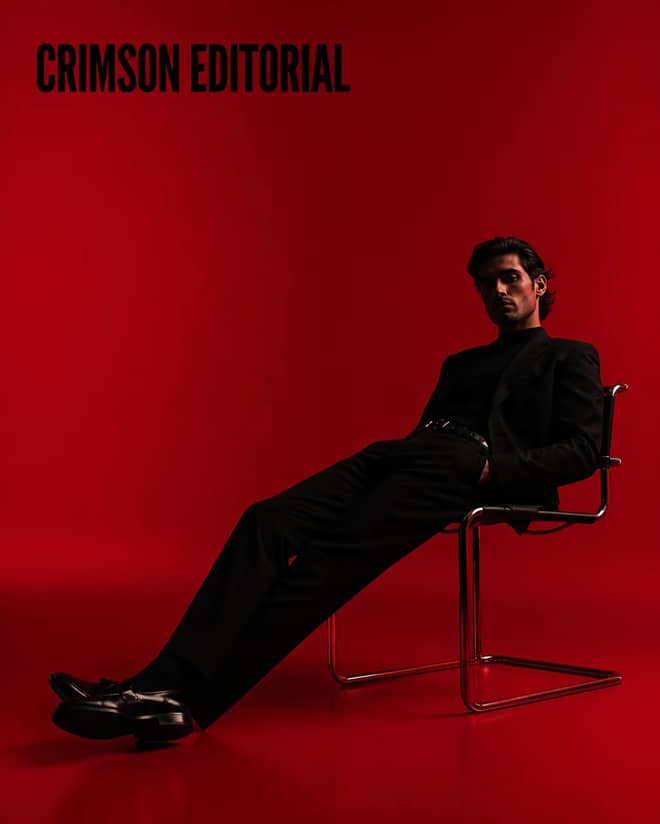
Create a crimson minimalist fashion editorial with this copy-paste prompt for realistic detail, cinematic lighting, and polished editorial results.
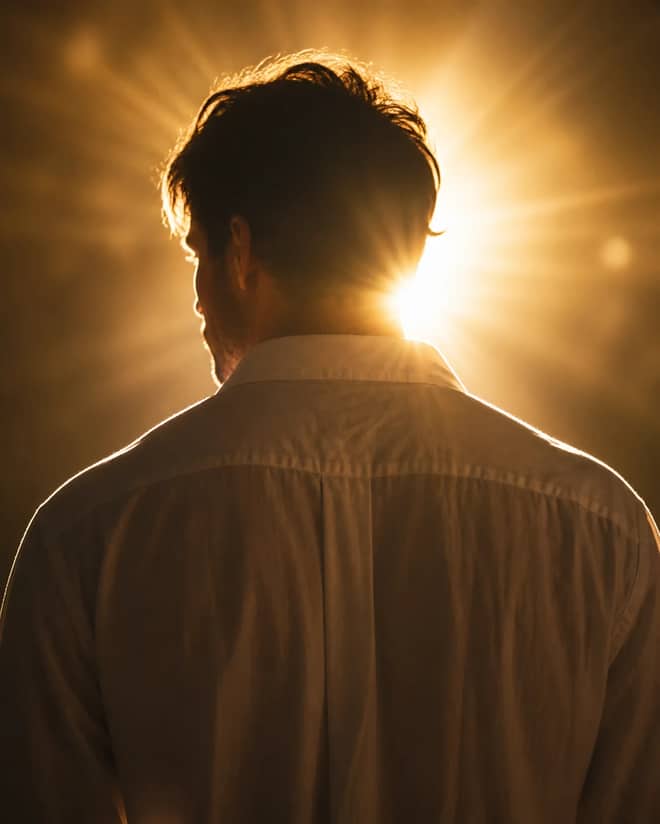
Create a golden backlight rear-view portrait with this copy-paste prompt for realistic detail, cinematic lighting, and polished editorial results.
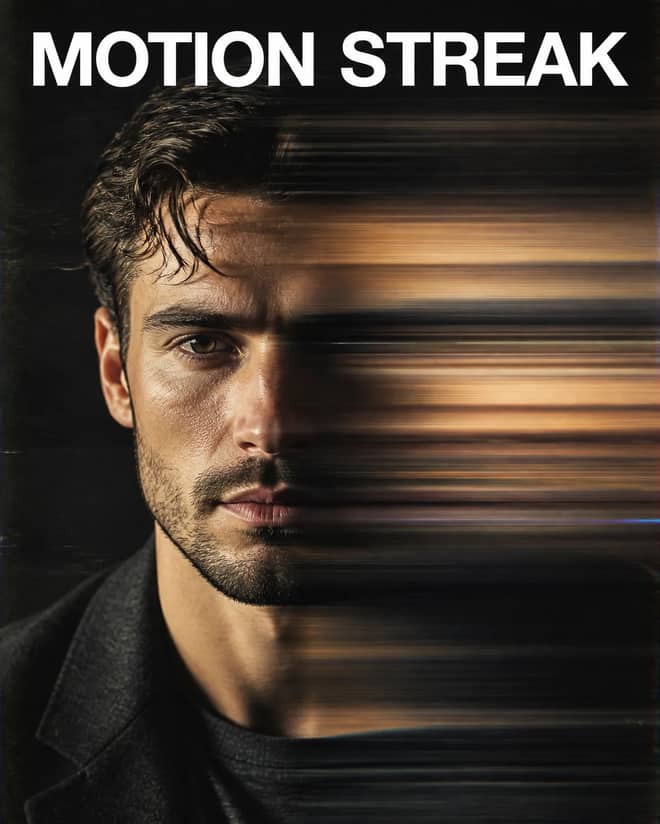
Create a horizontal motion streak photo effect with this copy-paste prompt for realistic detail, cinematic lighting, and polished editorial results.
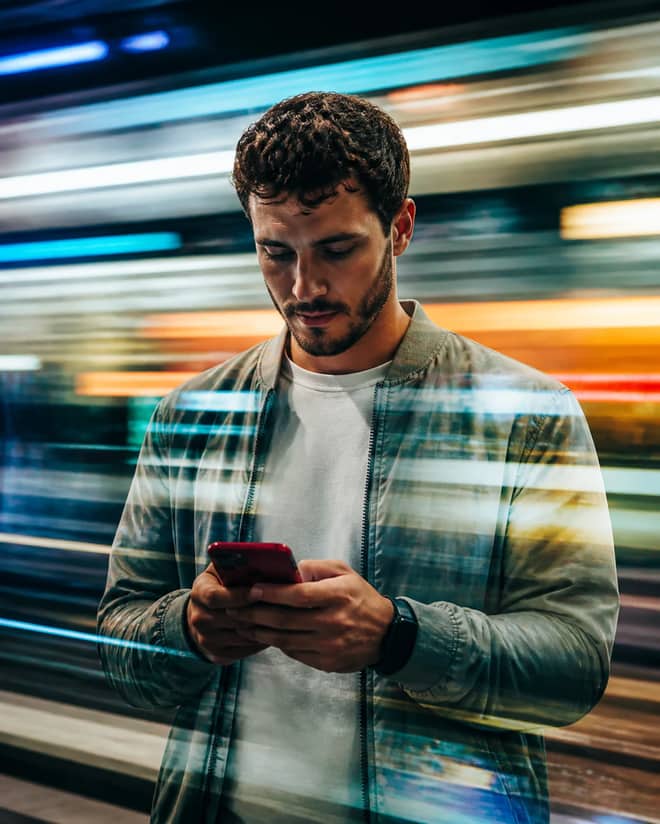
Create a speed-light double-exposure portrait with this copy-paste prompt for realistic detail, cinematic lighting, and polished editorial results.
Create a accidental motion-blur selfie with this copy-paste prompt for realistic detail, cinematic lighting, and polished editorial results.
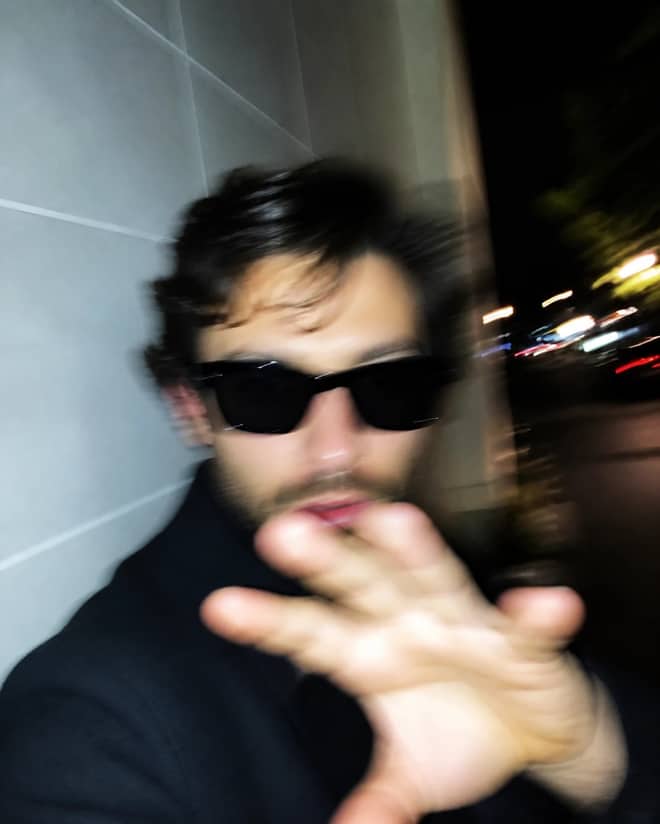
Create a nighttime motion-blur selfie with this copy-paste prompt for realistic detail, cinematic lighting, and polished editorial results.
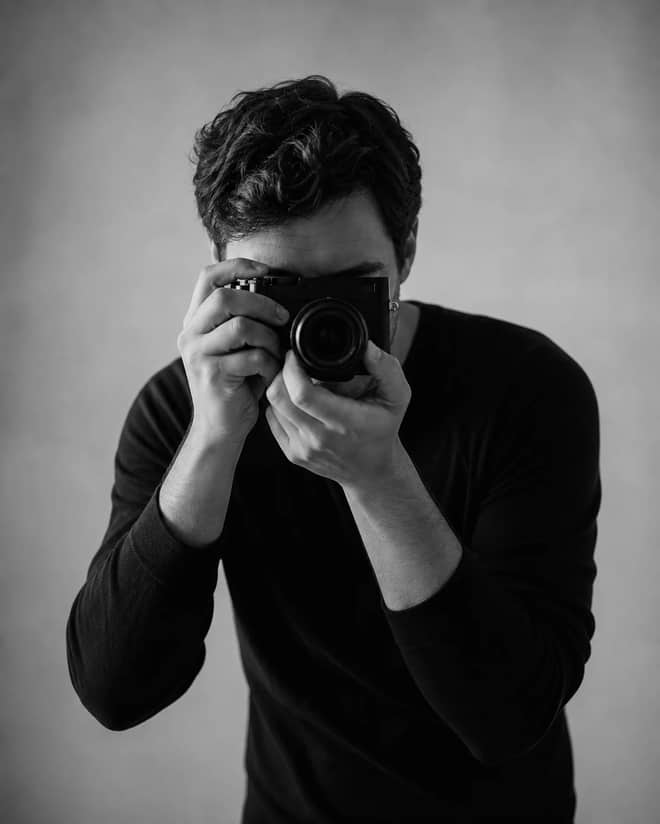
Create a black and white photographer portrait with this copy-paste prompt for realistic detail, cinematic lighting, and polished editorial results.
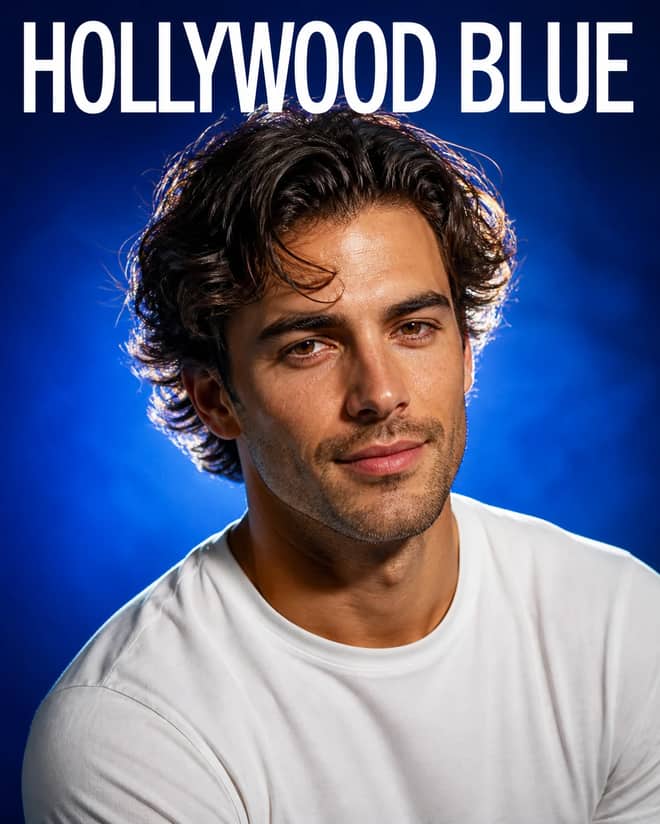
Create a electric blue studio portrait with this copy-paste prompt for realistic detail, cinematic lighting, and polished editorial results.
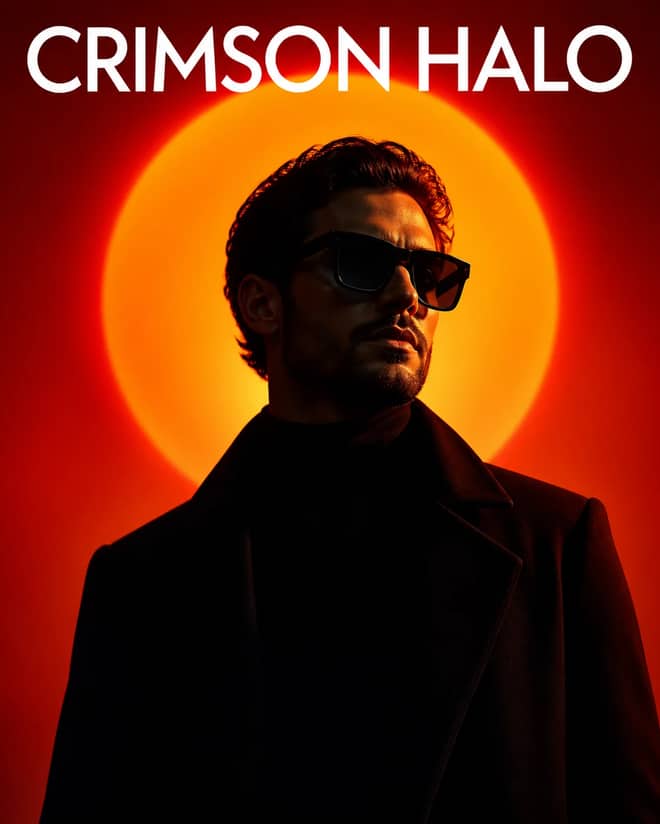
Create a crimson halo fashion portrait with this copy-paste prompt for realistic detail, cinematic lighting, and polished editorial results.
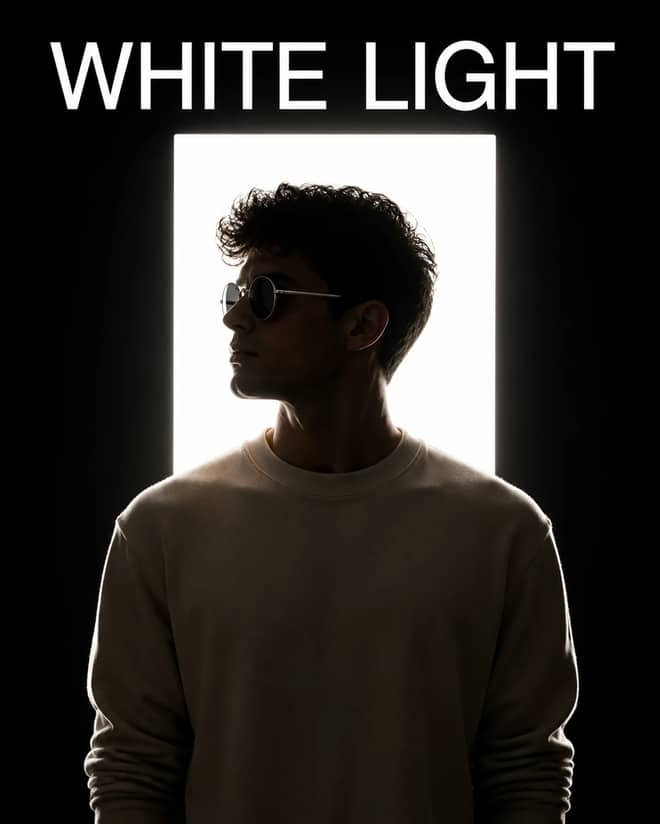
Create a backlit studio portrait with this copy-paste prompt for realistic detail, cinematic lighting, and polished editorial results.
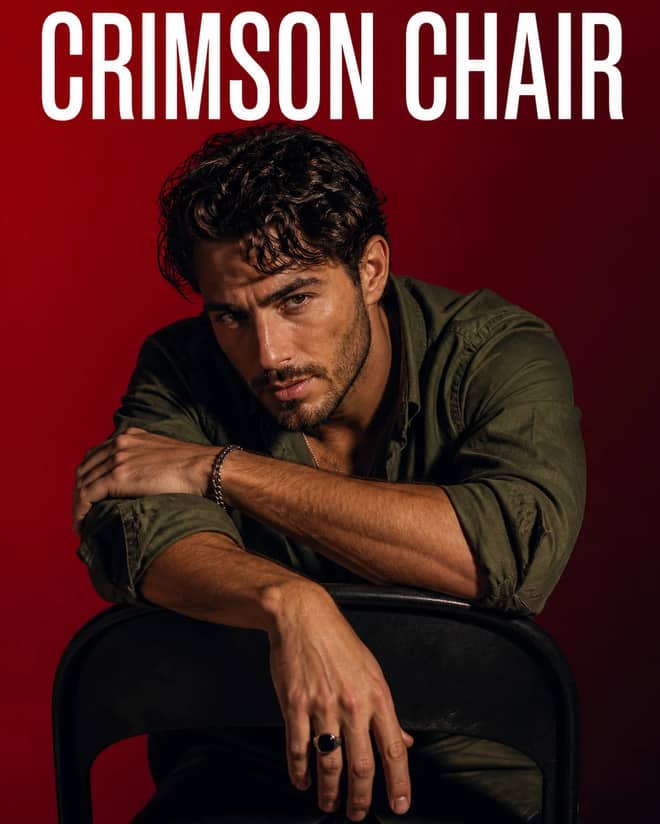
Create a crimson chair editorial portrait with this copy-paste prompt for realistic detail, cinematic lighting, and polished editorial results.
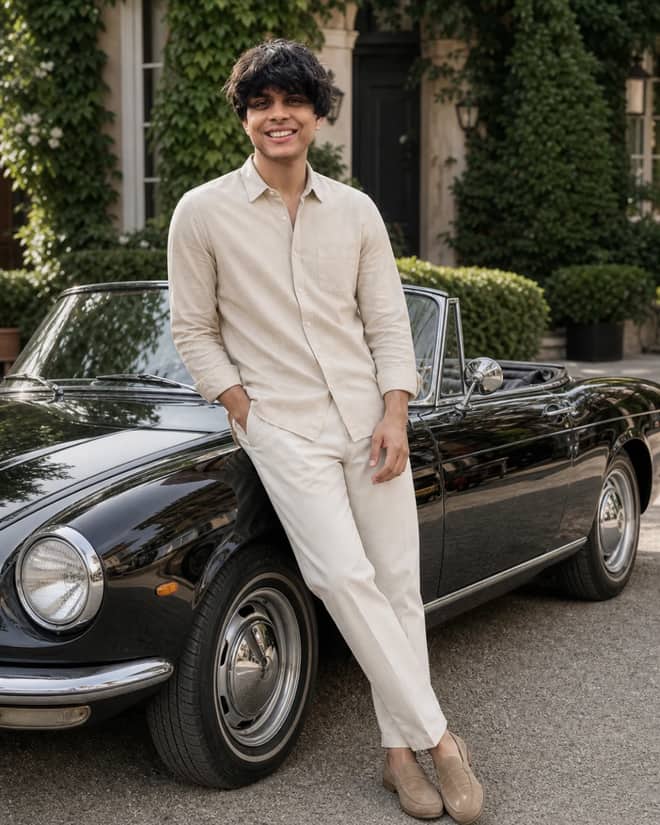
Create a quiet-luxury menswear campaign featuring a beige hero shirt, ivy-lined residence, and a classic black convertible in natural summer light.
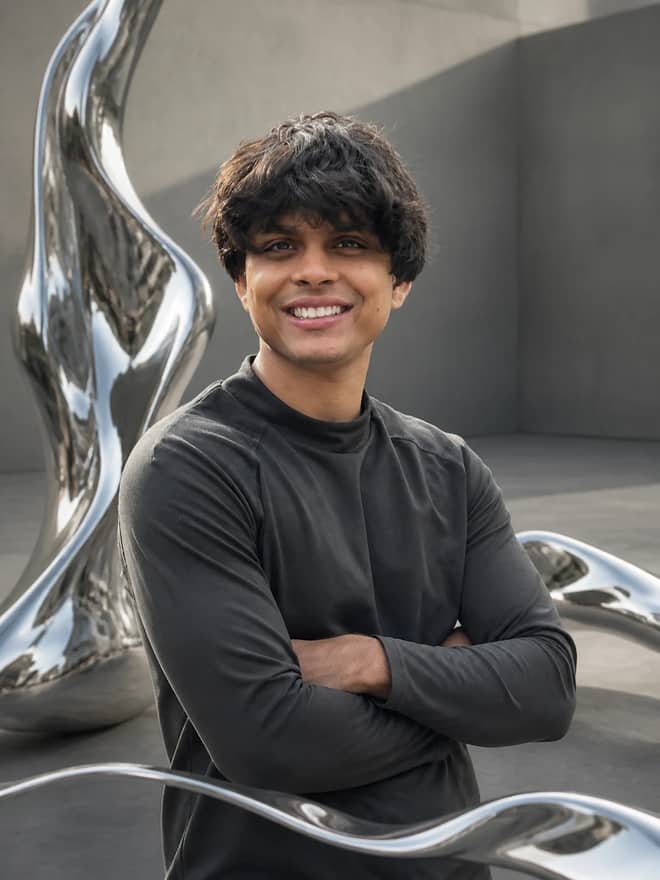
Transform a portrait into a premium surreal fashion editorial surrounded by reflective organic liquid-chrome forms with realistic depth and light.
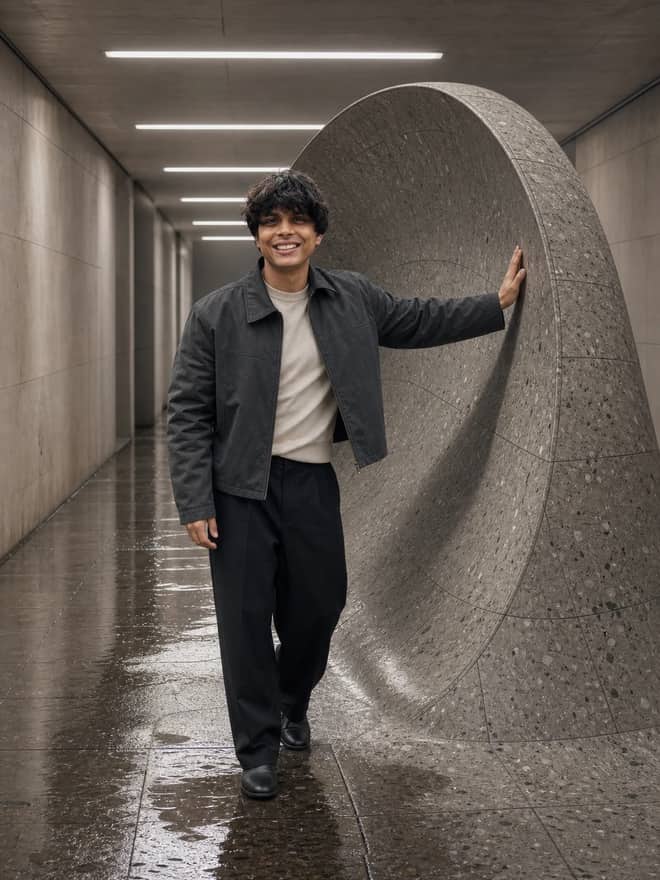
Build a premium on-location surreal editorial by defining a scene, outfit, and impossible effect while preserving realistic anatomy, lighting, reflections, and contact.
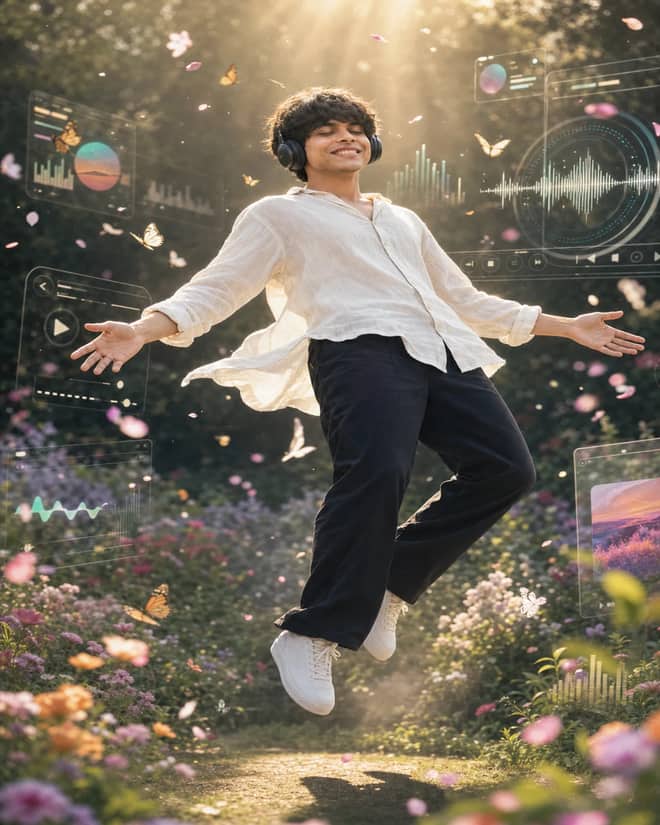
Create a surreal full-body garden portrait with a peaceful levitating subject, orbiting holographic music visuals, butterflies, petals, mist, and sun rays.
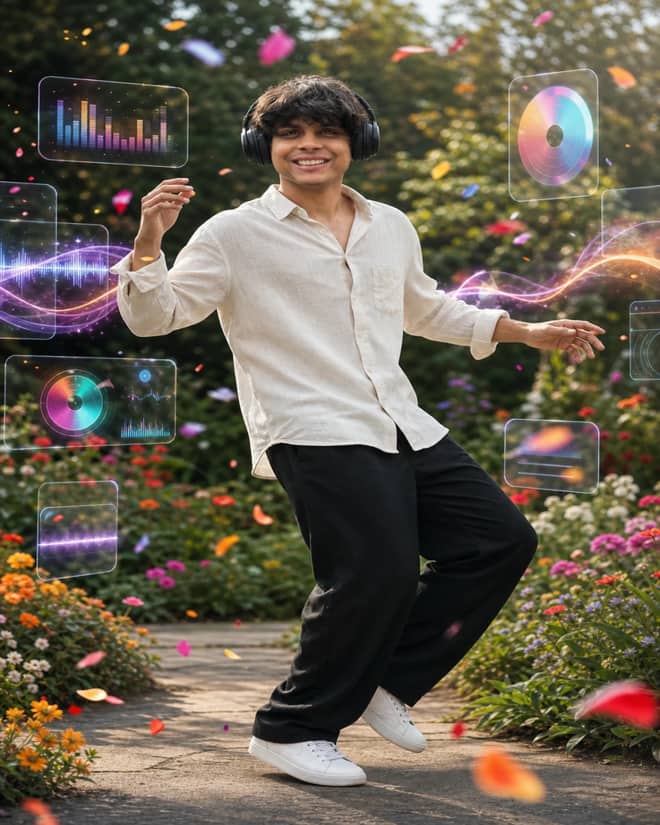
Create a vibrant full-body garden dance portrait with headphones, floating music visualizers, crisp fashion styling, and motion-blurred flower petals.
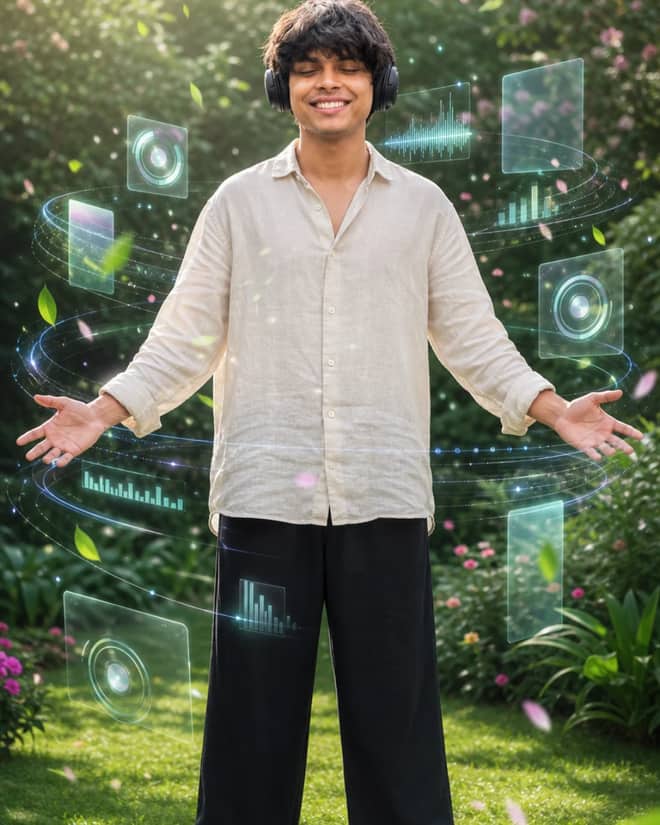
Create a centered full-body garden portrait with headphones, open arms, cinematic sun rays and layered holographic music visualizers.
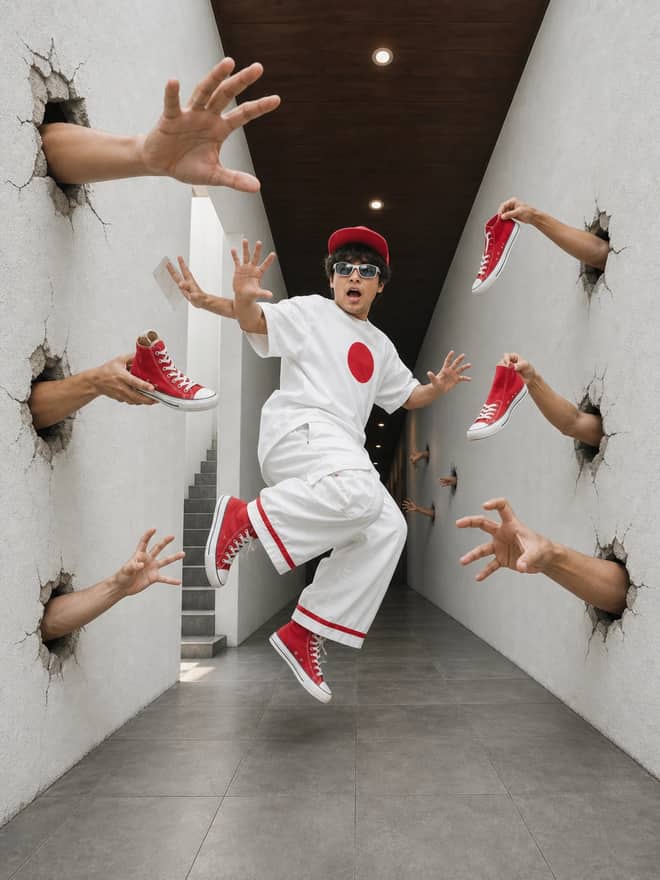
Create a wide-angle surreal corridor scene with one airborne subject, cracked-wall hands, matching red high-tops, and a bold white-and-red campaign palette.
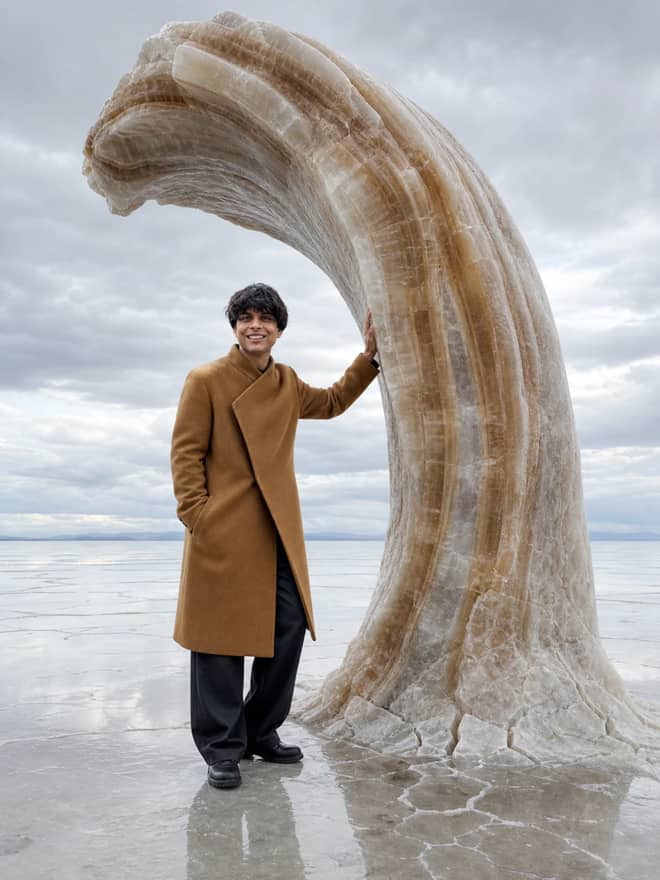
Build a believable surreal fashion campaign by combining any scene, outfit, and impossible effect with accurate light, contact, scale, and anatomy.
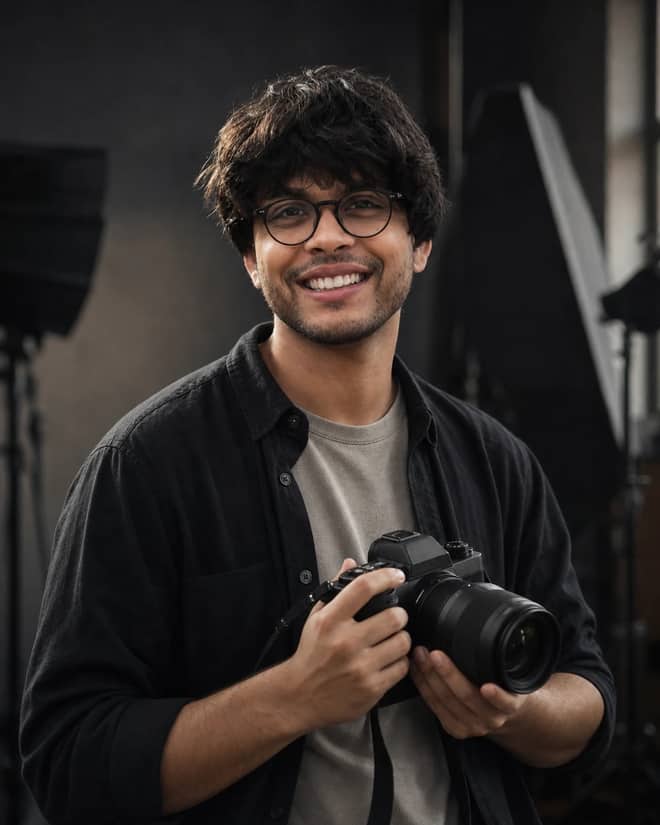
Create a cinematic studio fashion portrait with round glasses, layered dark clothing, a naturally held DSLR and soft window side-lighting.
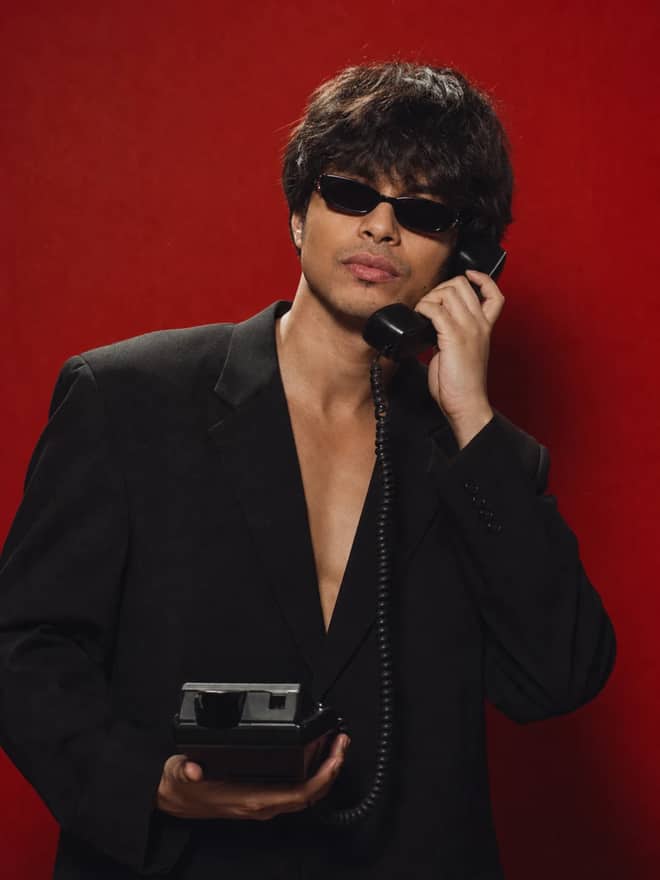
Create a bold retro-fashion portrait with narrow sunglasses, a wired vintage telephone, deep black tailoring, red grain, and dramatic analog lighting.
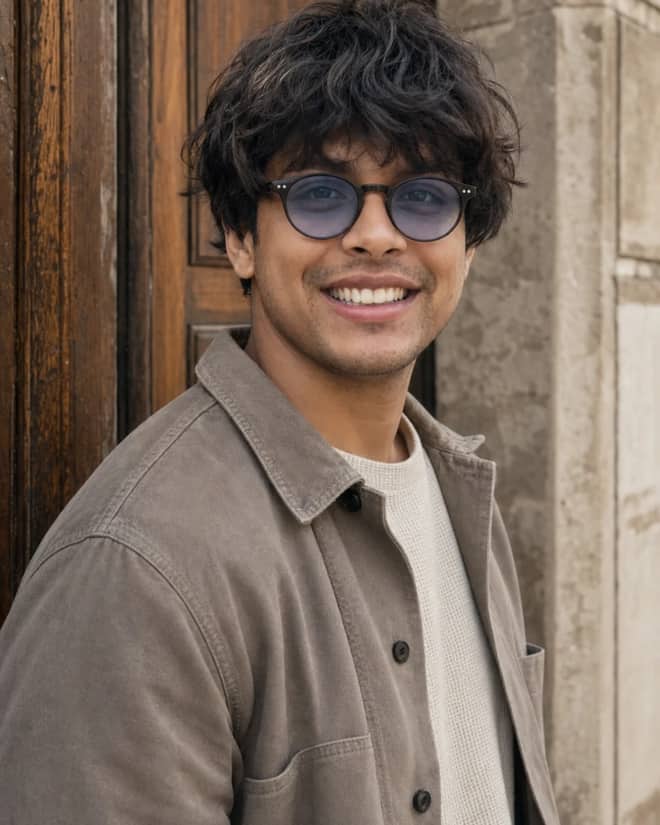
Create an earthy outdoor fashion portrait with blue-tinted round frames, a taupe shacket, waffle-knit sweater, wooden door and weathered stone.
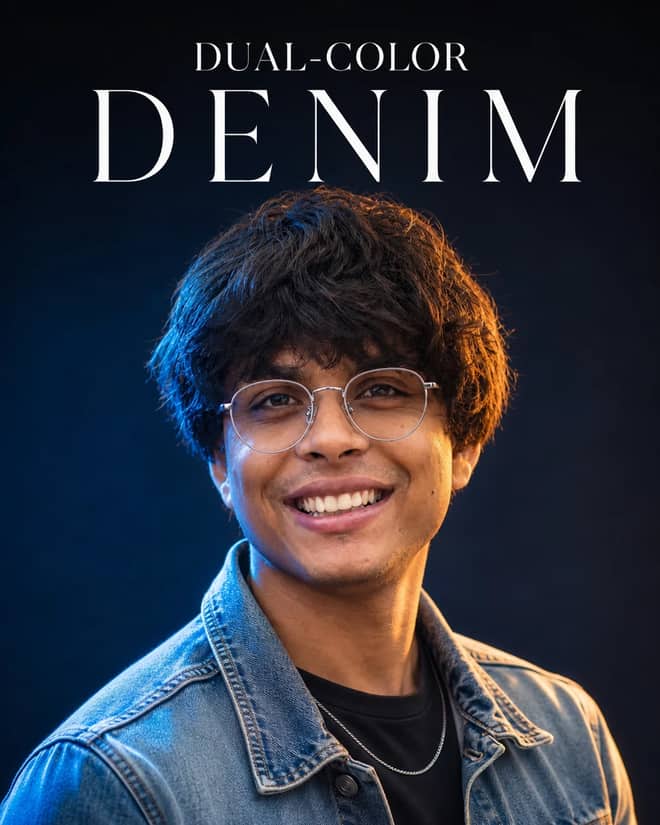
Create a polished denim fashion portrait with round silver glasses, direct eye contact, rich blue-and-amber split lighting, and a dark navy studio backdrop.
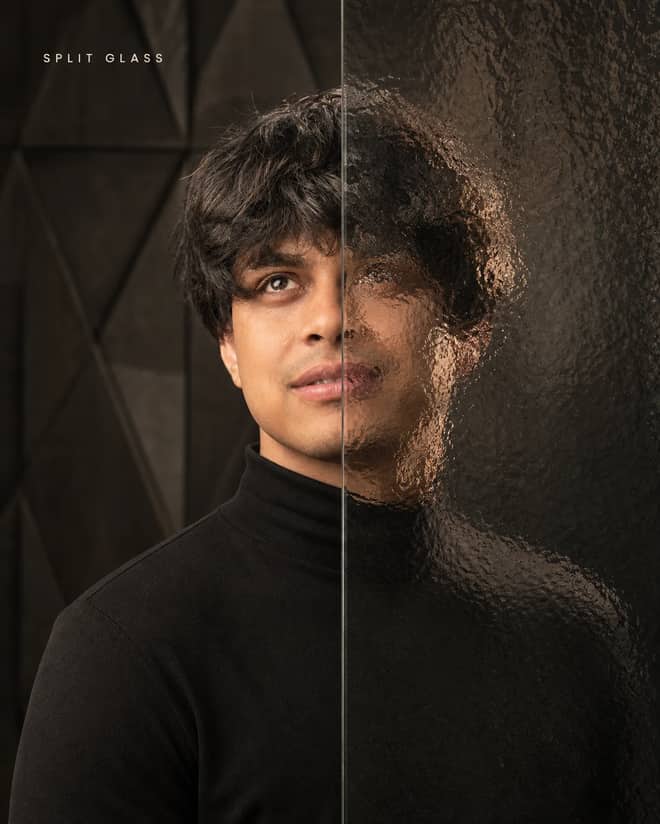
Create a luxury black-turtleneck portrait split between a crystal-clear view and realistic patterned-glass refraction with warm cinematic studio light.
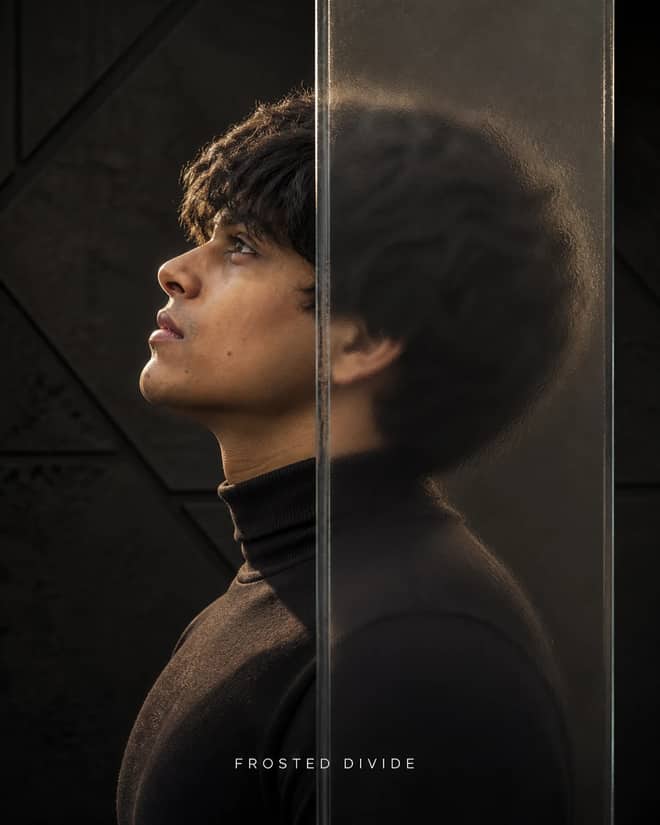
Create a luxury side-profile portrait split by a central frosted glass block, with one half sharply visible and the other softly distorted by refraction.
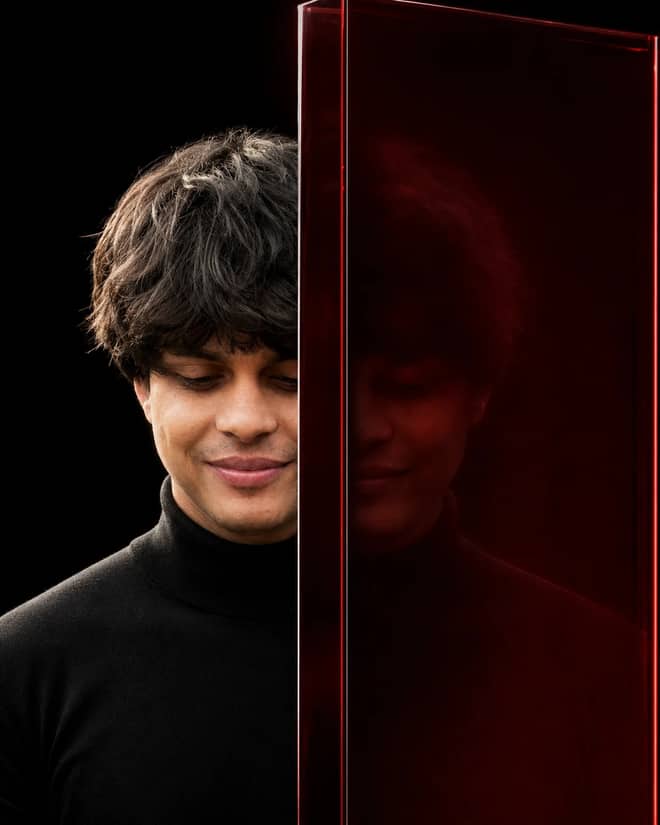
Create a luxury editorial portrait split by thick architectural glass, with one sharp half and one half dissolved into a ghosted red reflection.
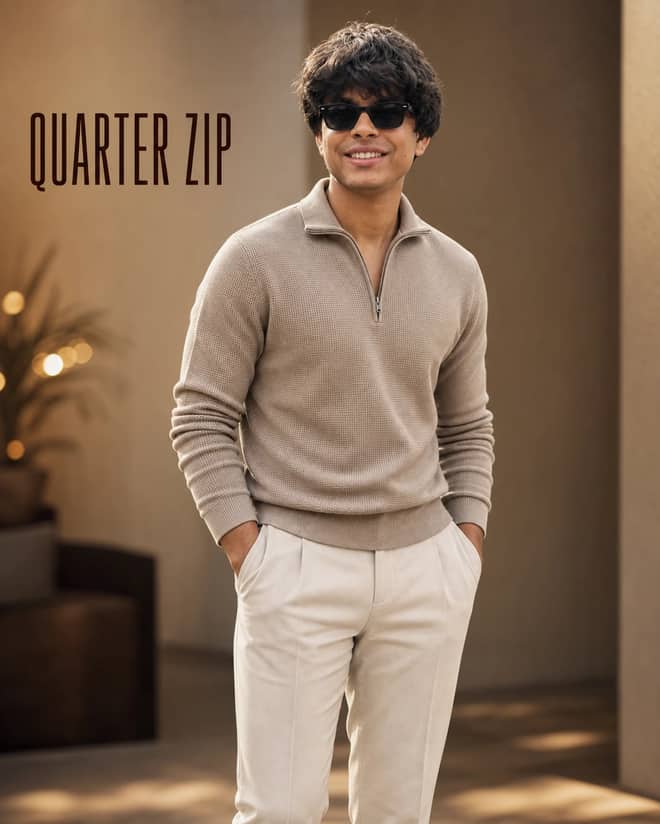
Create a refined beige quarter-zip fashion portrait with black sunglasses, relaxed hands-in-pockets styling, warm cinematic light, and premium detail.
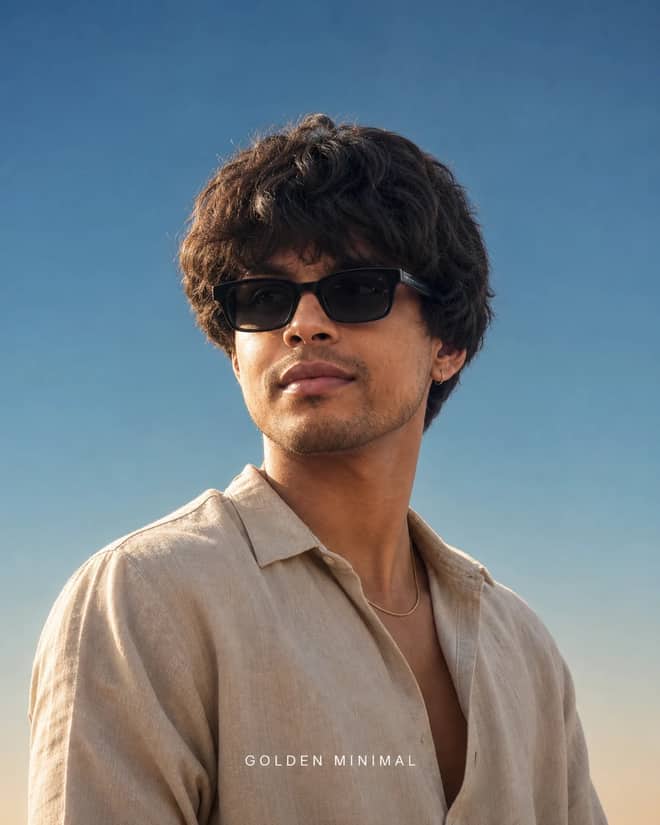
Create a clean low-angle golden-hour fashion portrait with black sunglasses, beige linen, directional side light, clear blue sky, and premium editorial detail.
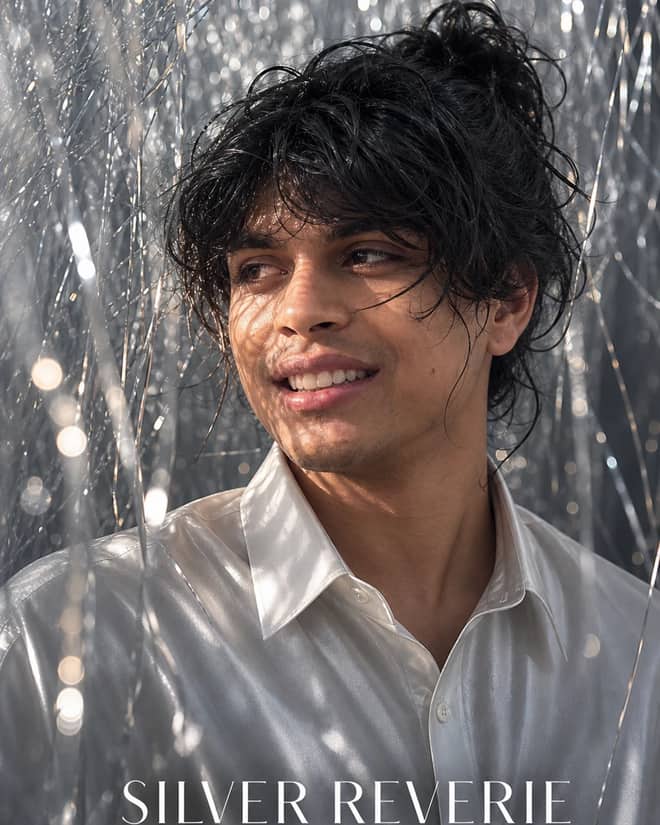
Create a dreamy silver-tinsel fashion portrait with wet-look hair, a shimmering white satin shirt, broken directional light, and luxury editorial detail.
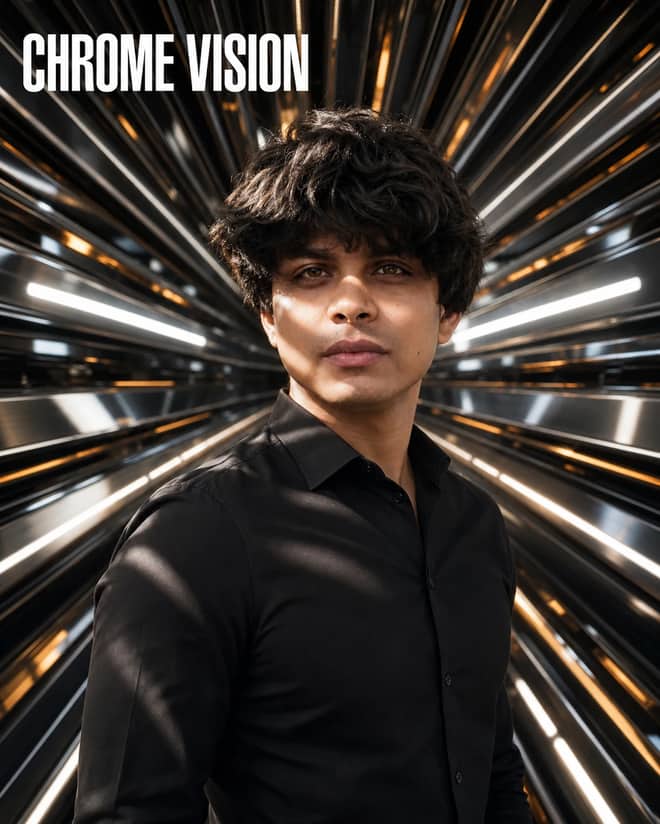
Create a luxury futuristic portrait with radiating chrome panels, white and amber reflections, dramatic light bands, and realistic editorial detail.
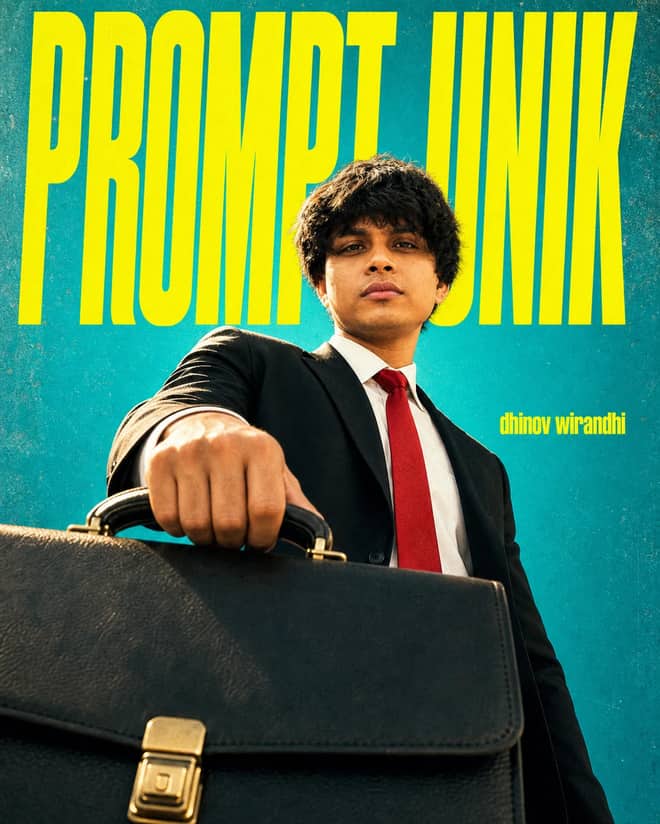
Create a bold Indonesian fashion poster with a monumental suited figure, oversized briefcase, teal backdrop, neon-yellow type, and cinematic low angle.
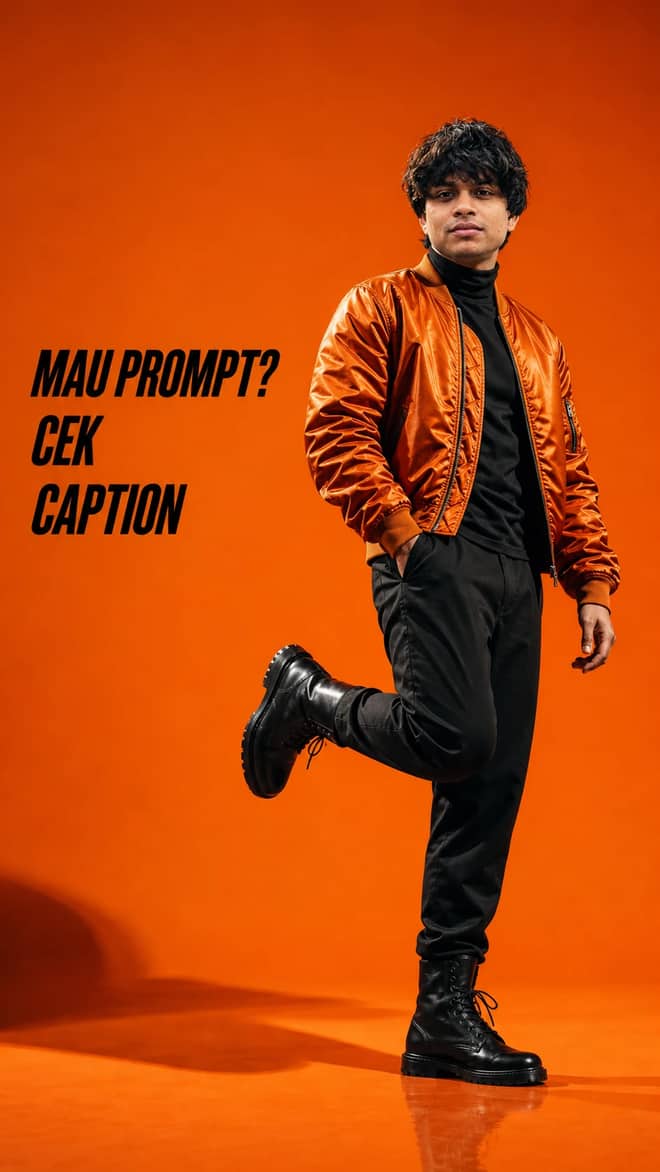
Create a bold orange studio fashion editorial with a glossy bomber jacket, dynamic full-body pose, dramatic lighting, and Indonesian caption CTA.
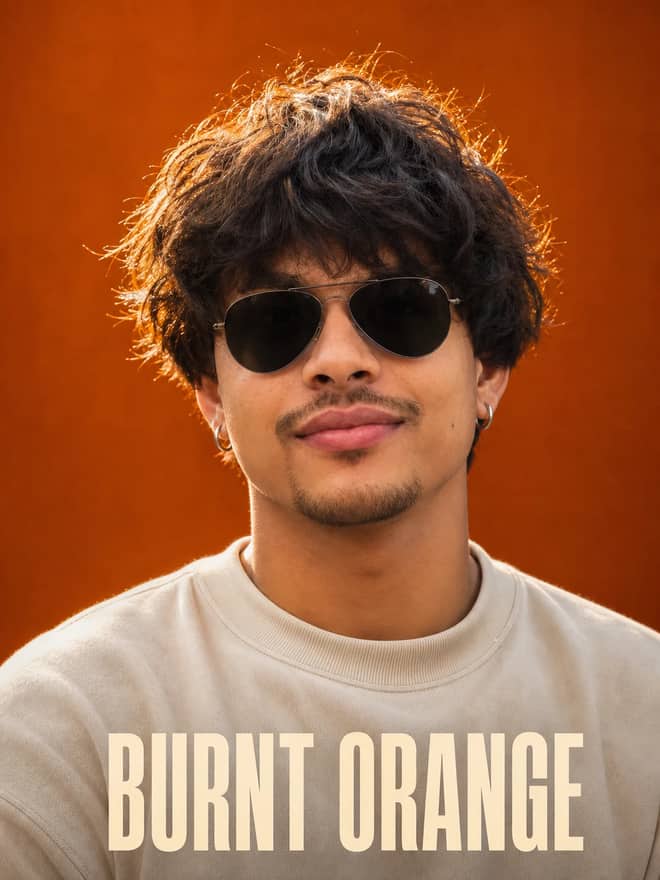
Create a premium close-up portrait with voluminous curls, aviator sunglasses, a cream sweatshirt, warm rim light, and a rich burnt-orange backdrop.
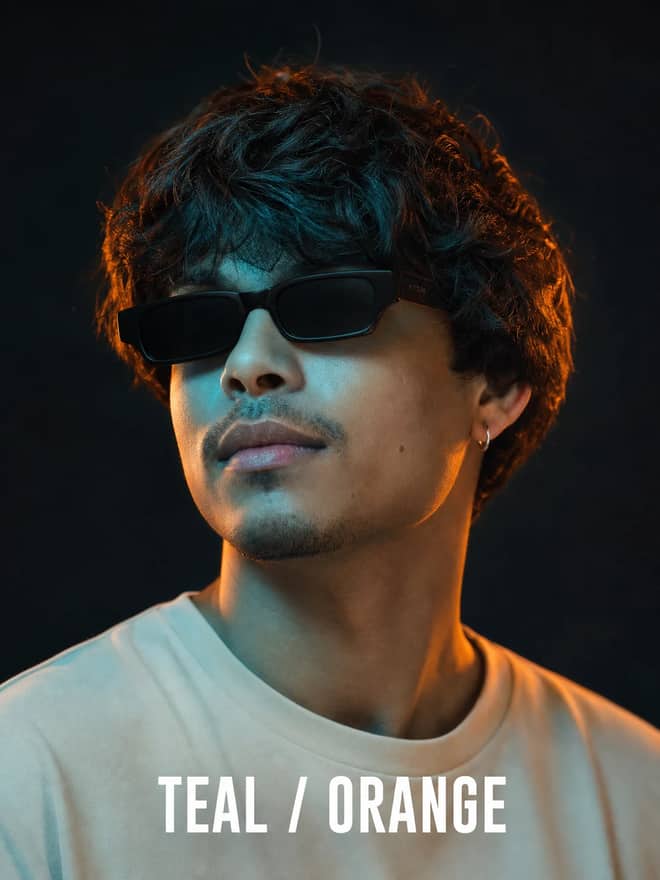
Create a moody editorial portrait with rectangular sunglasses, sculpted curls, cool teal key light, warm orange rim light, and cinematic depth.
No prompts match your search.
The guide
The gemini ai photo editor is not a panel of sliders and brushes. It is a chat box. You upload a picture, type the change you want in plain words, and Google's image model does the edit for you. The grid of prompts above is written for exactly this, so you can grab one, drop in your own photo, and get going. The rest of this page is about how the editor thinks, where it is genuinely good, and where it gets stubborn, so your results stop being a gamble.
Under the hood you are using Gemini 2.5 Flash Image, the model most people online just call nano banana. It runs inside the normal Gemini app on your phone and in the browser, and it is free to try there. Developers can call the same model through the API for a few cents per image, but if you are editing your own selfies you will never see a bill.
The mental shift is that there are no tools in the usual sense. No clone stamp, no curves, no hand masking. You ask, it edits. That sounds limiting, and sometimes it is, but for most everyday photo jobs, like swapping a background, fixing the light, or pulling a stranger out of the shot, it is faster than any slider you would have dragged for ten minutes.
Two reasons people keep coming back. First, you do not need to learn the software. If you can describe what you want, you can edit. There is no menu to memorize. Second, it keeps context. You make one change, then ask for another, and it remembers the photo you are working on. That back and forth is the whole appeal, and it is something a plain one-shot generator never gave you.
From what people are actually trying, a handful of jobs come up again and again. These are the ones worth keeping a ready prompt for.
One honest note on the figurine and 3D toy trend. It is fun and it is everywhere right now, but it leans more on generating a new image from your photo than on a true edit. Treat it as its own thing, because the model is inventing a lot rather than preserving what was there.
The rule I keep relearning is simple. Say what stays before you say what changes. The model holds onto specific instructions and guesses at vague ones. 'Make it better' is a coin toss. 'Keep my face and pose exactly, replace the background with a soft grey studio wall, keep the light warm and even' gives you something you can actually post.
Tip: read your prompt back before you send it and ask whether a stranger could follow it with nothing else to go on. If they would have to guess, the model is guessing too.
Do not try to fix five things in one message. Change one thing, look at the result, then ask for the next. Because the editor remembers the image, each follow-up can be short. 'Now make the background a little brighter.' 'Now remove the cup on the left.' This is exactly where the chat format beats a single giant prompt, which tends to break three things while fixing one. It feels slower and it is actually faster, because you are not redoing work that fell apart.
Here is a quick reference you can adapt. The pattern is always the same: name the change, then name what must survive untouched.
| Edit type | How to ask for it | What to tell it to keep |
|---|---|---|
| Studio background | Replace the background with a plain backdrop, soft even light | Face, pose, and the original outfit |
| Golden hour glow | Add warm low sun and a gentle rim light | The scene and the real skin tone |
| Retro film look | Add subtle grain and faded color, 90s feel | The faces and the framing |
| Remove an object | Erase the exact thing, name it clearly | Everything else, left alone |
| Restore old print | Add natural color and fix the scratches | The era and the people's likeness |
Photoshop, Lightroom, and Snapseed are not going anywhere, and for precise retouching they still win. Pixel-level masking, exact color grading, print prep, that is their turf and the control is real. Gemini wins on speed and on edits that would normally take skill, like rebuilding a whole background or restoring a damaged print. The honest split is this. If you know which pixels to touch and you care about fine control, open a real editor. If you can describe the result and want it in two minutes, talk to Gemini. Plenty of people now do both, roughing the idea in Gemini and finishing in Lightroom.
Most bad results trace back to a few habits. None of them are hard to break once you spot them.
Say you have a phone selfie shot in a messy bedroom and you want a clean profile photo out of it. Upload the picture first. Then paste something like: keep my face, hair, and pose exactly the same, replace the background with a plain soft grey wall, use even flattering light, keep it photorealistic, do not change my skin tone. Look at what comes back. If the wall is a little dark, send one short follow-up: make the grey background slightly brighter. If a corner of the old room is still showing, say so plainly. Two or three passes and you are done.
That is the rhythm of the whole thing. Upload, paste a clear prompt, check one thing, refine one thing. The prompts in the grid above already follow this shape, so most of your job is choosing the look you want and dropping in your photo. Start with a single edit, get it right, then build from there. The version worth keeping should still look like you, just on a better day with better lighting.
Questions
Yes, you can edit photos for free inside the Gemini app on your phone or in a browser, which is where most people use it. The model behind it, Gemini 2.5 Flash Image, costs developers a few cents per image through the API, but casual editing on your own photos does not cost you anything.
Open the Gemini app, upload your photo, then type the change you want in plain words and send. Say what should stay the same first, then what to change. Look at the result and send short follow-ups to refine it, since the editor remembers the image you are working on.
Yes, if you tell it to. Start your prompt with something like keep my face, hair, and pose unchanged, then describe only what you want changed. Use a sharp, well-lit source photo and limit each pass to one or two edits. Faces drift when you ask for too much at once.
They are good at different things. Photoshop and Lightroom win on precise, pixel-level control and color grading. Gemini wins on speed and on hard edits like background swaps or photo restoration, where you just describe the result. Many people rough the idea in Gemini and finish the fine work in a traditional editor.
Usually the input was low quality or the prompt asked for too much at once. Start with the clearest photo you have, request one edit at a time, and state what must stay the same. When a result is close, repeat the prompt with one small correction instead of starting over.